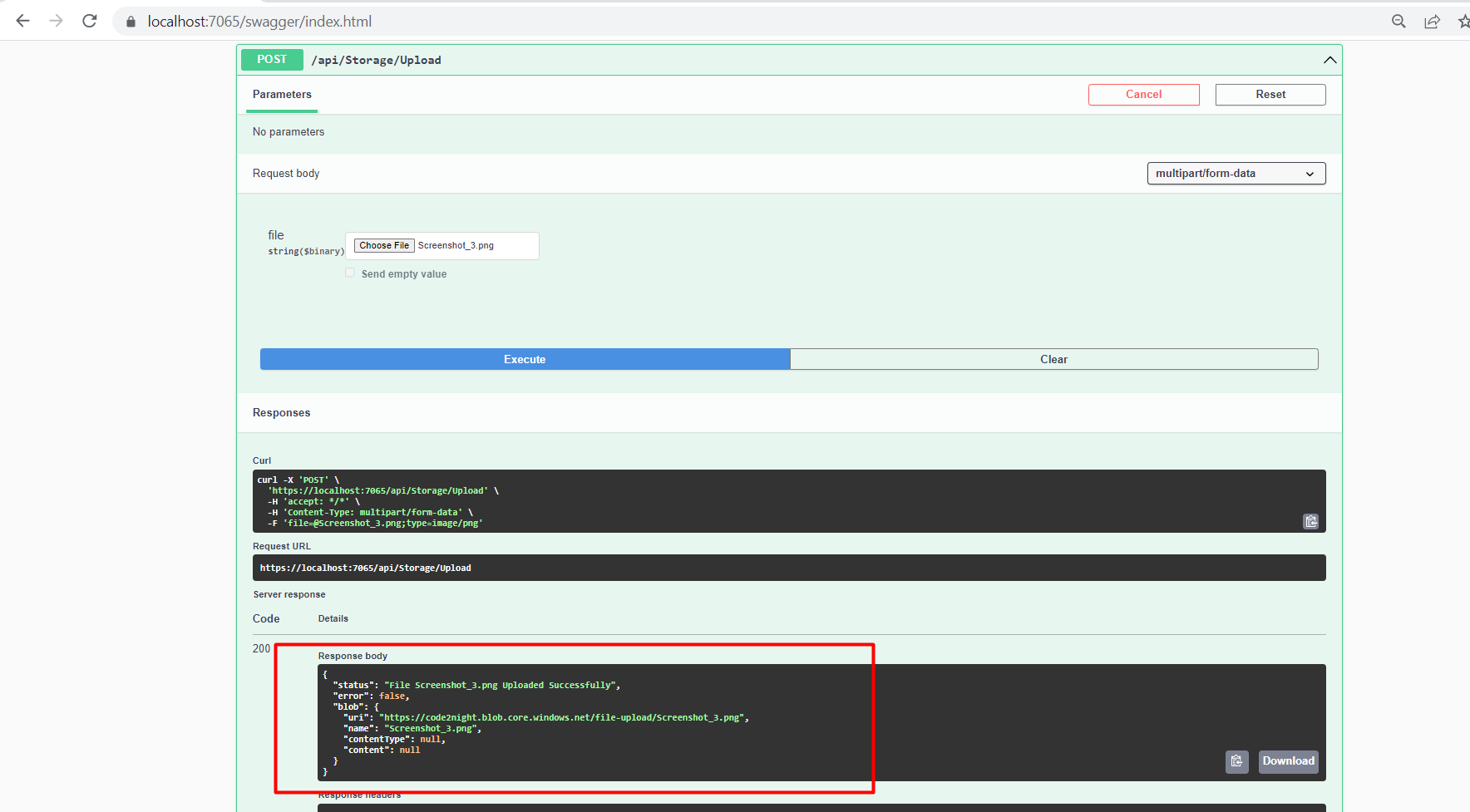
How to upload files to Azure Blob Storage in an ASP.NET Core Web
How to upload files to Azure Blob Storage in an ASP.NET Core Web
Code2nightLearn how to upload files to Azure Blob Storage in an ASP.NET Core Web application. This tutorial walks you through the process
Create a new Azure Storage Account
Open up the Azure Portal and search for Storage Accounts and open that page. You will now be able to create a new storage account, by using the “Create”
Create a Blob Container at the Storage Account
Click on the Storage Account and select Container in the menu on your left side.
Create a new ASP.NET Web API to handle files in Azure
Open Visual Studio and create a new project with the ASP.NET Core Web API template and.NET 6 (Long-term Support) as the framework. I have not placed my solution and project in the same folder. Optionally, you can enable Docker support if you are thinking of containerizing the solution.
Install required NuGet Packages
Azure.Storage.Blobs
Install-Package Azure.Storage.Blobs
Microsoft.VisualStudio.Azure.Containers.Tools.Targets
Install-Package Microsoft.VisualStudio.Azure.Containers.Tools.Targets
Add configuration details to appsettings.json
Open appsettings.json and add the following lines below "AllowedHosts":
{
  "Logging": {
    "LogLevel": {
      "Default": "Information",
      "Microsoft.AspNetCore": "Warning"
    }
  },
  "AllowedHosts": "*",
  "BlobConnectionString": "Your Connection string from Azure",
  "BlobContainerName": "Your container name in Azure"
}
Create a new folder named "Models," a new public class named "BlobDto," and another one named "BlobResponseDto."
Place the below code inside BlobDto.cs.
namespace AzureBlobStorage.Models
{
    public class BlobDto
    {
        public string? Uri { get; set; }
        public string? Name { get; set; }
        public string? ContentType { get; set; }
        public Stream? Content { get; set; }
    }
}
This is for BlobResponseDto.cs
namespace AzureBlobStorage.Models
{
    public class BlobResponseDto
    {
        public string? Status { get; set; }
        public bool Error { get; set; }
        public BlobDto Blob { get; set; }

        public BlobResponseDto()
        {
            Blob = new BlobDto();
        }
    }
}
Make an Azure Blob Storage repository.
To make it all a bit more clear and easy to maintain in the future or to implement for you in another solution or project, let’s put it all inside a repository and wire that up to a controller using an interface.
Create a new folder named "Services." This will contain our interface for the repository implementation. Create a new public interface and name it IAzureStorage. Place the below code inside the interface:
using AzureBlobStorage.Models;

namespace AzureBlobStorage.Services
{
    public interface IAzureStorage
    {
        /// <summary>
        /// This method uploads a file submitted with the request
        /// </summary>
        /// <param name="file">File for upload</param>
        /// <returns>Blob with status</returns>
        Task<BlobResponseDto> UploadAsync(IFormFile file);

    }
}
As you can see, we now have four different async methods that make up a CRUD (create, read, update, and delete) interface for files located at Azure. Next, we have to add a new folder named "Repository" and create a new file inside that folder named "AzureStorage.cs."
using Azure.Storage.Blobs.Models;
using Azure.Storage.Blobs;
using AzureBlobStorage.Models;
using AzureBlobStorage.Services;
using Azure;

namespace AzureBlobStorage.Repository
{
    public class AzureStorage : IAzureStorage
    {
        #region Dependency Injection / Constructor

        private readonly string _storageConnectionString;
        private readonly string _storageContainerName;
        private readonly ILogger<AzureStorage> _logger;

        public AzureStorage(IConfiguration configuration, ILogger<AzureStorage> logger)
        {
            _storageConnectionString = configuration.GetValue<string>("BlobConnectionString");
            _storageContainerName = configuration.GetValue<string>("BlobContainerName");
            _logger = logger;
        }

        public async Task<BlobResponseDto> UploadAsync(IFormFile blob)
        {
            // Create new upload response object that we can return to the requesting method
            BlobResponseDto response = new();

            // Get a reference to a container named in appsettings.json and then create it
            BlobContainerClient container = new BlobContainerClient(_storageConnectionString, _storageContainerName);
            //await container.CreateAsync();
            try
            {
                // Get a reference to the blob just uploaded from the API in a container from configuration settings
                BlobClient client = container.GetBlobClient(blob.FileName);

                // Open a stream for the file we want to upload
                await using (Stream? data = blob.OpenReadStream())
                {
                    // Upload the file async
                    await client.UploadAsync(data);
                }

                // Everything is OK and file got uploaded
                response.Status = $"File {blob.FileName} Uploaded Successfully";
                response.Error = false;
                response.Blob.Uri = client.Uri.AbsoluteUri;
                response.Blob.Name = client.Name;

            }
            // If the file already exists, we catch the exception and do not upload it
            catch (RequestFailedException ex)
               when (ex.ErrorCode == BlobErrorCode.BlobAlreadyExists)
            {
                _logger.LogError($"File with name {blob.FileName} already exists in container. Set another name to store the file in the container: '{_storageContainerName}.'");
                response.Status = $"File with name {blob.FileName} already exists. Please use another name to store your file.";
                response.Error = true;
                return response;
            }
            // If we get an unexpected error, we catch it here and return the error message
            catch (RequestFailedException ex)
            {
                // Log error to console and create a new response we can return to the requesting method
                _logger.LogError($"Unhandled Exception. ID: {ex.StackTrace} - Message: {ex.Message}");
                response.Status = $"Unexpected error: {ex.StackTrace}. Check log with StackTrace ID.";
                response.Error = true;
                return response;
            }

            // Return the BlobUploadResponse object
            return response;
        }

        #endregion

    }
}
Modify Program.cs to use Serilog and register our Azure service.
I have totally rewritten the program. CS file because I wanted to add some extra logging. I have decided to add Serilog and write it to the console.
Install serilog Packages 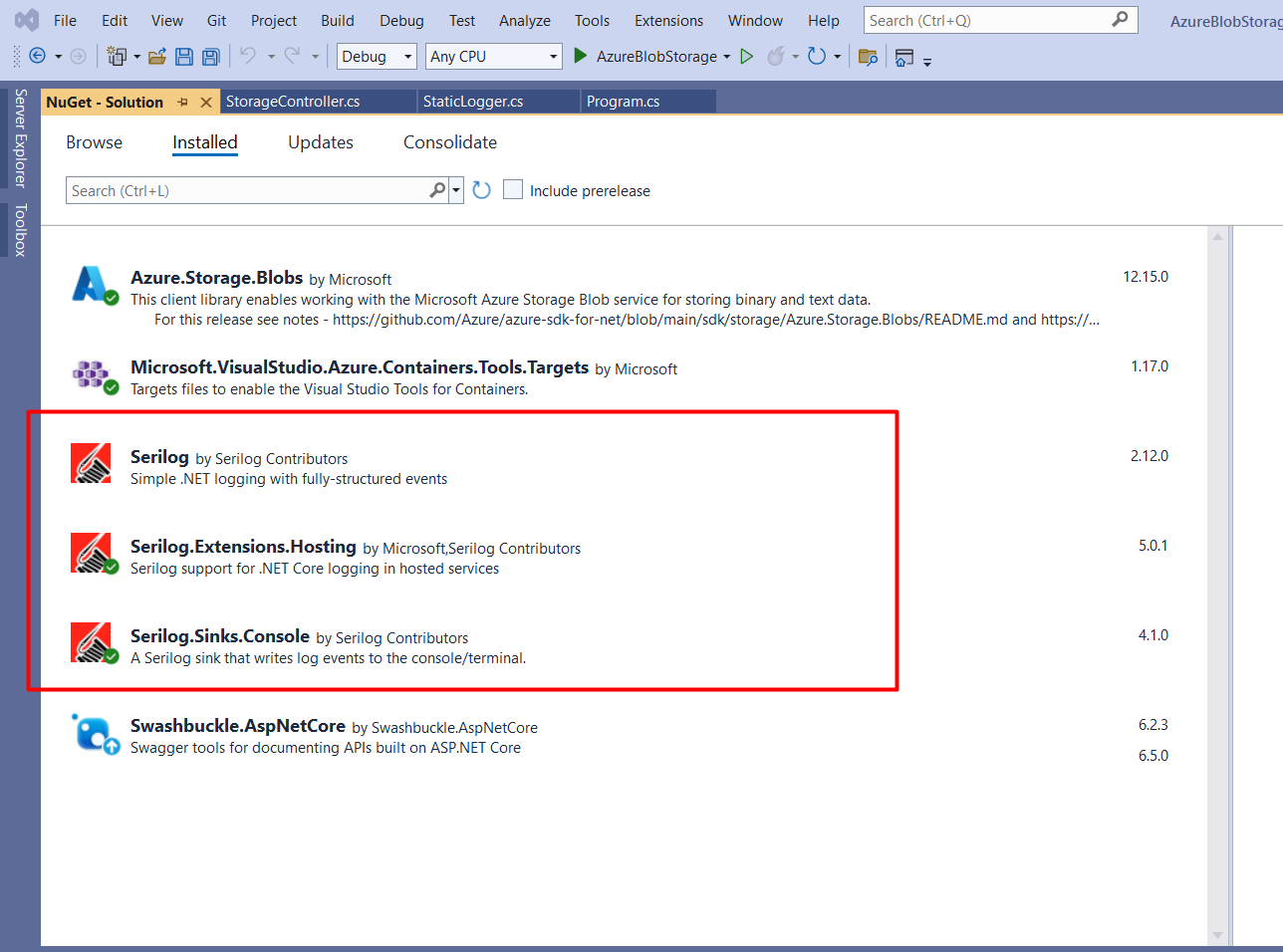
using AzureBlobStorage.Common;
using AzureBlobStorage.Repository;
using AzureBlobStorage.Services;
using Serilog;

StaticLogger.EnsureInitialized();
Log.Information("Azure Storage API Booting Up...");

try
{
    var builder = WebApplication.CreateBuilder(args);

    // Add Serilog
    builder.Host.UseSerilog((_, config) =>
    {
        config.WriteTo.Console();
        //.ReadFrom.Configuration(builder.Configuration);
    });

    builder.Services.AddLogging(loggingBuilder => loggingBuilder.AddSerilog(dispose: true));


    builder.Services.AddControllers();
    builder.Services.AddEndpointsApiExplorer();
    builder.Services.AddSwaggerGen();

    // Add Azure Repository Service
    builder.Services.AddTransient<IAzureStorage, AzureStorage>();
    Log.Information("Services has been successfully added...");

    var app = builder.Build();

    // Configure the HTTP request pipeline.
    if (app.Environment.IsDevelopment())
    {
        app.UseSwagger();
        app.UseSwaggerUI();
    }

    app.UseHttpsRedirection();

    app.UseAuthorization();

    app.MapControllers();

    app.Run();
    Log.Information("API is now ready to serve files to and from Azure Cloud Storage...");
}
catch (Exception ex) when (!ex.GetType().Name.Equals("StopTheHostException", StringComparison.Ordinal))
{
    StaticLogger.EnsureInitialized();
    Log.Fatal(ex, "Unhandled Exception");
}
finally
{
    StaticLogger.EnsureInitialized();
    Log.Information("Azure Storage API Shutting Down...");
    Log.CloseAndFlush();
}
As you might notice, I use a class named StaticLogger with the method EnsureInitialized(). For you to get that, you have to add a new folder named Common and then add a new class named StaticLogger.cs. Below is the implementation for StaticLogger.cs.
using Serilog;

namespace AzureBlobStorage.Common
{
    public class StaticLogger
    {
        public static void EnsureInitialized()
        {
            if (Log.Logger is not Serilog.Core.Logger)
            {
                Log.Logger = new LoggerConfiguration()
                    .Enrich.FromLogContext()
                    .WriteTo.Console()
                    .CreateLogger();
            }
        }
    }
}
Create a StorageController for implementing Azure Blob Storage endpoints.
The controller is a simple one with four actions. Each action is returning an IActionResult when the repository has done its work against our Azure Blob Storage.
I have not created any names for the routes, as the four methods are different. If you want, you can change the names of the routes. In a production environment, I would most likely change this to include naming, especially if I have multiple actions in the same controller that use the same request methods (POST, GET, DELETE, PUT).
using AzureBlobStorage.Models;
using AzureBlobStorage.Services;
using Microsoft.AspNetCore.Mvc;

namespace AzureBlobStorage.Controllers
{
    [Route("api/[controller]")]
    [ApiController]
    public class StorageController : ControllerBase
    {
        private readonly IAzureStorage _storage;

        public StorageController(IAzureStorage storage)
        {
            _storage = storage;
        }

        [HttpPost(nameof(Upload))]
        public async Task<IActionResult> Upload(IFormFile file)
        {
            BlobResponseDto? response = await _storage.UploadAsync(file);

            // Check if we got an error
            if (response.Error == true)
            {
                // We got an error during upload, return an error with details to the client
                return StatusCode(StatusCodes.Status500InternalServerError, response.Status);
            }
            else
            {
                // Return a success message to the client about successfull upload
                return StatusCode(StatusCodes.Status200OK, response);
            }
        }

    }
}