Get Channel Videos using YouTube Data Api in Asp.Net
YouTube Data API V3
Welcome back to Code2Night! Today, we dive into the YouTube Data API v3, a powerful tool that allows developers to access YouTube's vast video library programmatically. This API is essential for applications that require integration with YouTube, such as displaying videos on a website, creating playlists, or even managing user uploads.
Using the YouTube Data API, you can retrieve various types of data, including videos, playlists, and channel information. In this tutorial, we will focus on retrieving videos from a specific YouTube channel, which is a common requirement for websites that want to showcase content from their own channels or from popular creators.
Prerequisites
Before we start, ensure you have the following prerequisites:
- ASP.NET MVC Application: You should have an existing ASP.NET MVC application set up. If you are starting from scratch, create a new ASP.NET Core MVC project using Visual Studio or the .NET CLI.
- Google Account: You need a Google account to access the Google Cloud Console and create an API key.
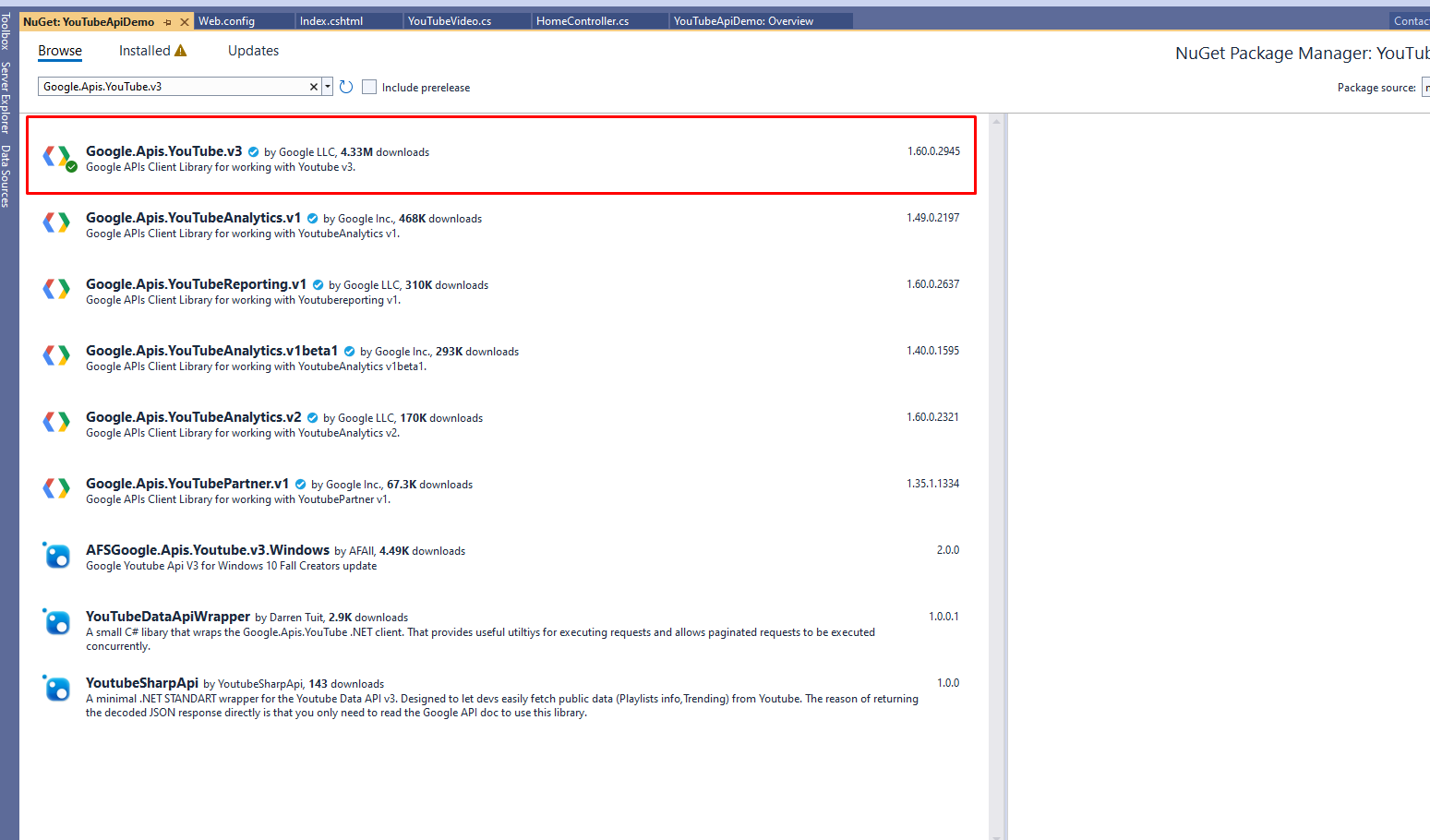
- NuGet Package: We will be using the Google.Apis.YouTube.v3 NuGet package to interact with the YouTube API.
Setting Up the YouTube Data API
The first step in using the YouTube Data API is to obtain an API key. Here’s how you can do it:
- Go to the Google Cloud Console.
- Create a new project or select an existing one.
- Navigate to the APIs & Services dashboard.
- Enable the YouTube Data API v3 for your project.
- Create credentials and copy your API key.
Once you have your API key, you can proceed to integrate it into your ASP.NET application.
Installing the Required NuGet Package
Next, you need to install the Google.Apis.YouTube.v3 NuGet package. This package provides the necessary classes and methods to interact with the YouTube Data API.
To install the package, follow these steps:
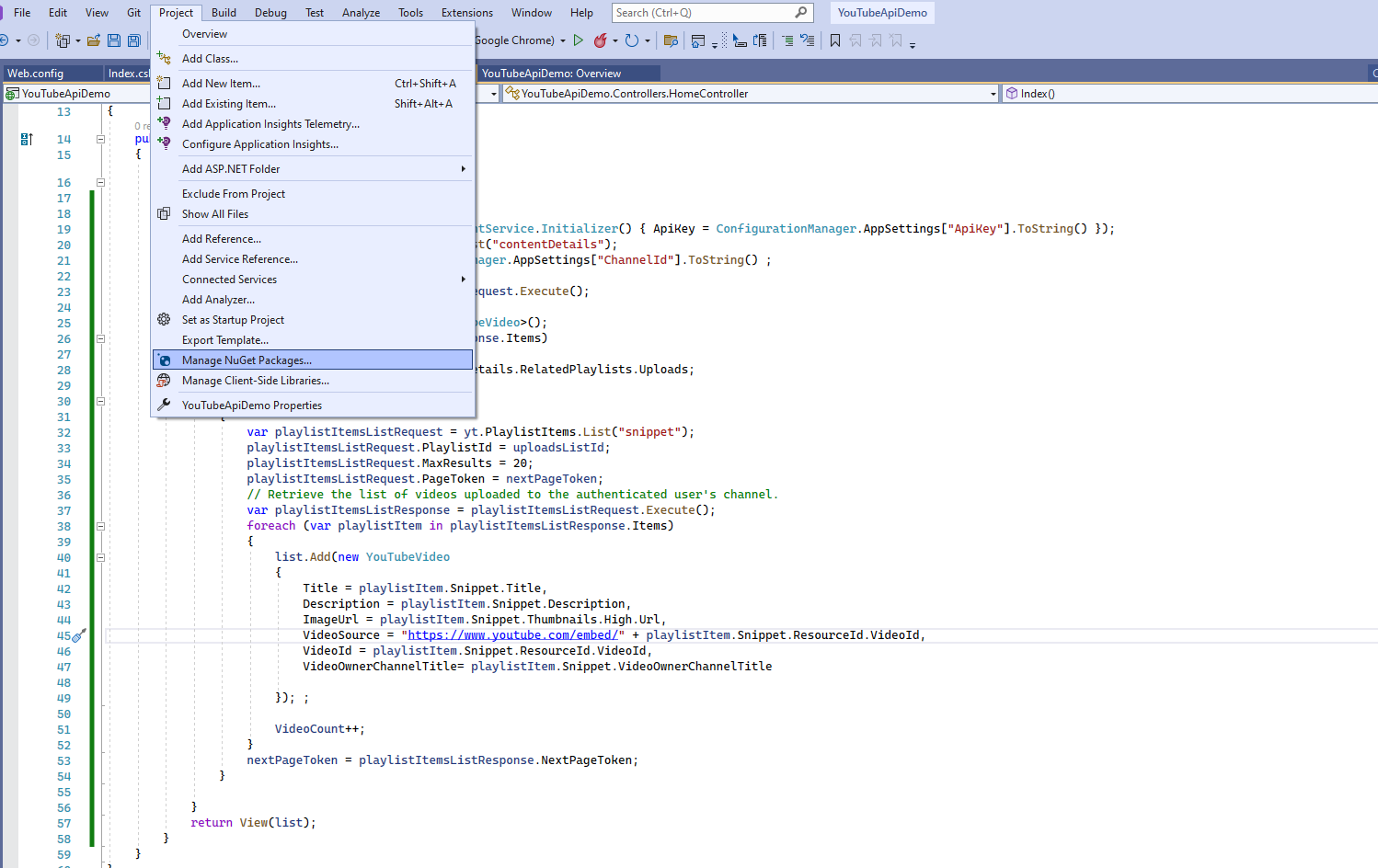
- Right-click on your project in Visual Studio.
- Select Manage NuGet Packages.
- Search for Google.Apis.YouTube.v3 and install it.
Creating the Model
Now that we have the API key and the required package, let’s create a model to represent the YouTube video data we will retrieve. Create a new class file named YouTubeVideo.cs in your Models folder and add the following code:
public class YouTubeVideo { public string VideoId { get; set; } public string ImageUrl { get; set; } public string Description { get; set; } public string Title { get; set; } public string VideoSource { get; set; } public string VideoOwnerChannelTitle { get; set; } }This model will hold the details of each video, including its ID, title, description, thumbnail image URL, and the channel title.
Implementing the Controller Logic
Next, we will implement the logic in our controller to fetch the videos from the YouTube channel. Open your controller file (e.g., HomeController.cs) and paste the following code:
using Google.Apis.Services; using Google.Apis.YouTube.v3; using Google.Apis.YouTube.v3.Data; public ActionResult Index() { var yt = new YouTubeService(new BaseClientService.Initializer() { ApiKey = ConfigurationManager.AppSettings["ApiKey"].ToString() }); var channelsListRequest = yt.Channels.List("contentDetails"); channelsListRequest.Id = ConfigurationManager.AppSettings["ChannelId"].ToString(); var channelsListResponse = channelsListRequest.Execute(); List<YouTubeVideo> list = new List<YouTubeVideo>(); foreach (var channel in channelsListResponse.Items) { var uploadsListId = channel.ContentDetails.RelatedPlaylists.Uploads; var nextPageToken = ""; while (nextPageToken != null) { var playlistItemsListRequest = yt.PlaylistItems.List("snippet"); playlistItemsListRequest.PlaylistId = uploadsListId; playlistItemsListRequest.MaxResults = 20; playlistItemsListRequest.PageToken = nextPageToken; var playlistItemsListResponse = playlistItemsListRequest.Execute(); foreach (var playlistItem in playlistItemsListResponse.Items) { list.Add(new YouTubeVideo { Title = playlistItem.Snippet.Title, Description = playlistItem.Snippet.Description, ImageUrl = playlistItem.Snippet.Thumbnails.High.Url, VideoSource = "https://www.youtube.com/embed/" + playlistItem.Snippet.ResourceId.VideoId, VideoId = playlistItem.Snippet.ResourceId.VideoId, VideoOwnerChannelTitle = playlistItem.Snippet.VideoOwnerChannelTitle }); } nextPageToken = playlistItemsListResponse.NextPageToken; } } return View(list); }This code initializes the YouTube service, retrieves the channel details, and fetches the uploaded videos in a loop. The videos are then stored in a list of YouTubeVideo objects.
Configuring Web.config
To use the API key and channel ID in your application, you need to add them to your Web.config file. Open the Web.config file and add the following entries under the <appSettings> section:
<add key="ChannelId" value="UCqQGu4auPacvpkoAFuZvew" /> <add key="ApiKey" value="YOUR_API_KEY" />Make sure to replace YOUR_API_KEY with your actual API key and ChannelId with your desired channel ID. The values provided in this example are placeholders and will not work.
Displaying Videos in the View
Finally, we need to display the fetched videos in our view. Open the corresponding view file (e.g., Index.cshtml) and use the following code:
@model List<YouTubeApiDemo.Models.YouTubeVideo> @{ ViewBag.Title = "YouTube Videos"; } <div> @foreach (var item in Model) { <div class="col-md-12" style="padding:5px;border:1px solid grey;margin-bottom:5px;"> <div class="col-md-2"> <iframe width="150" height="100" src="@item.VideoSource" frameborder="0" allowfullscreen></iframe></div> <div class="col-md-10"> <h4>@item.Title</h4> <p>@item.Description</p> </div> </div> } </div>This code iterates over the list of videos and displays each video along with its title and description. The videos are embedded using an iframe for easy playback directly within your web application.
Edge Cases & Gotchas
When working with the YouTube Data API, there are a few edge cases to keep in mind:
- Quota Limits: The YouTube API has quota limits for the number of requests you can make. Be sure to monitor your usage to avoid exceeding these limits, which could lead to temporary suspension of access.
- API Key Security: Keep your API key secure and do not expose it in client-side code. Consider using server-side methods to handle API requests to mitigate security risks.
- Video Availability: Videos may be removed or made private by the uploader. Always handle the possibility of encountering such cases gracefully in your application.
Performance & Best Practices
To optimize the performance of your application when using the YouTube Data API, consider the following best practices:
- Batch Requests: If you need to retrieve data from multiple endpoints, consider batching requests to minimize the number of API calls and improve performance.
- Cache Responses: Implement caching strategies for API responses to reduce the number of requests made to the YouTube API, especially for frequently accessed data.
- Use Pagination: When retrieving large sets of data, make sure to implement pagination to avoid overwhelming your application with too much data at once.
Conclusion
In this tutorial, we explored how to retrieve videos from a YouTube channel using the YouTube Data API v3 in an ASP.NET application. We covered:
- Setting up the YouTube Data API and obtaining an API key.
- Installing the required NuGet package to interact with the API.
- Implementing controller logic to fetch and display videos.
- Handling edge cases and following best practices for performance.
By following these steps, you can easily integrate YouTube videos into your ASP.NET applications, enhancing user engagement and providing dynamic content updates.