
How to implement Paypal in Asp.Net Webforms
Paypal Integration in Webforms
Using PayPal in ASP.NET (ASPX) involves integrating PayPal's payment processing functionality into your web application to enable users to make online payments securely. Here's a general guide on how you can implement PayPal in an ASP.NET web application:
Paypal is a payment gateway which provides secure payments across the world. It help you accept international payment at some price per transaction. There is no initial setup fee for implementing paypal.So for integrating paypal in Asp.Net aspx Webforms we have to follow these steps :
First of all take one Asp.net Webform application and we will install paypal nuget package which is showed in the image below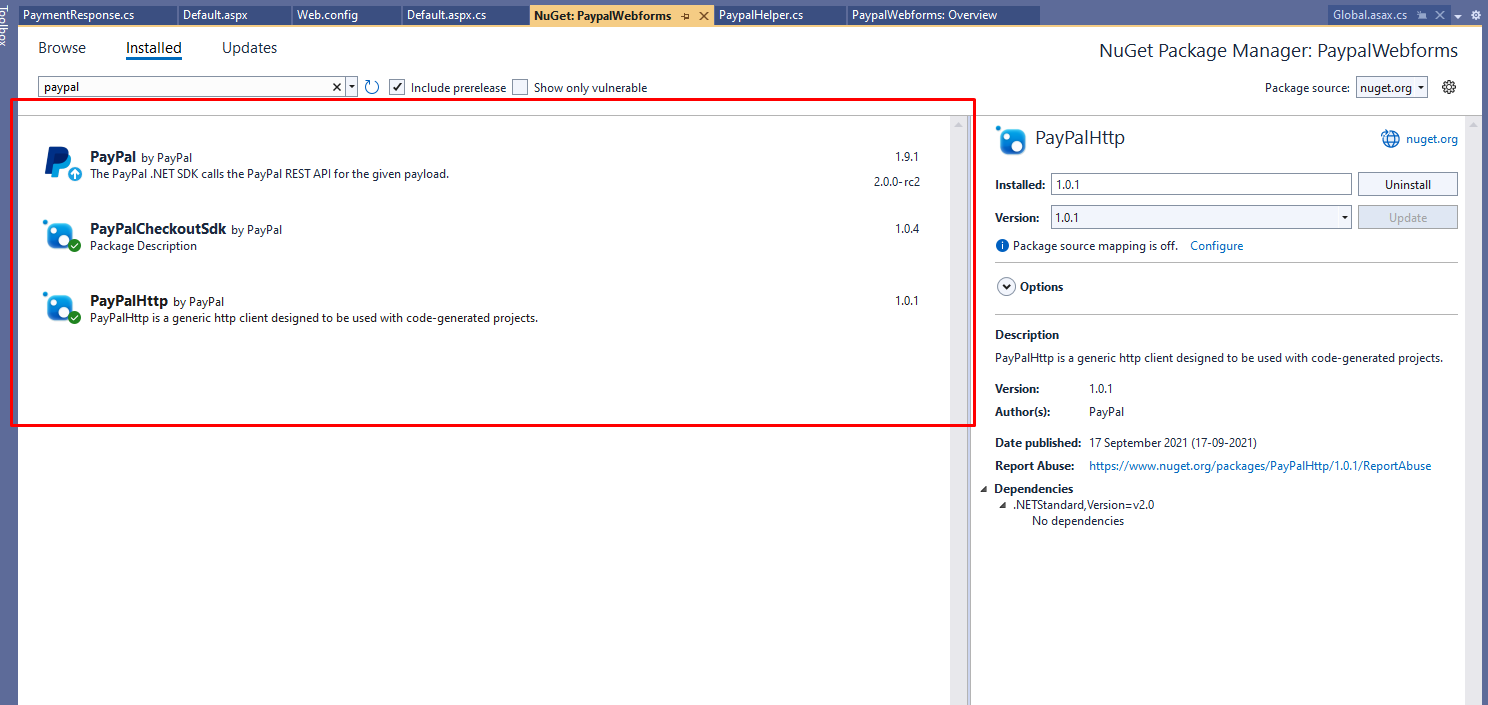
After you have done installing paypal nuget package we will have to take one new form where we will add paypal integration code. You have to add these namespaces on the controller
using PayPalCheckoutSdk.Core;
using PayPalCheckoutSdk.Orders;
using PayPalHttp;
So, now we have to add these methods in our aspx webpage, this method will help us initialize payment and redirect to payment page
 using PayPalCheckoutSdk.Core;
using PayPalCheckoutSdk.Orders;
using PayPalHttp;
using System;
using System.Collections.Generic;
using System.Linq;
using System.Net.Http;
using System.Threading.Tasks;
using System.Web;
using System.Web.UI;
using System.Web.UI.WebControls;

namespace PaypalWebforms
{
    public partial class _Default : Page
    {
        private static string PayPalClientId => System.Configuration.ConfigurationManager.AppSettings["PayPalClientId"];
        private static string PayPalClientSecret => System.Configuration.ConfigurationManager.AppSettings["PayPalClientSecret"];

        protected void Page_Load(object sender, EventArgs e)
        {

            if (Request.QueryString != null && Request.QueryString.Count != 0)
            {
                string approvalToken = Request.QueryString["token"];
                var response = Task.Run(async () => await captureOrder(approvalToken));  // Use .Result since Page_Load is not asynchronous

                // Process the response or handle errors as needed
                if (response.Result != null)
                {
                    Order result = response.Result.Result<Order>();
                    Label1.Text = result.Status;
                    // Process the response or handle errors
                }
                else
                {
                    // Handle null response (error handling)
                }


            }

        }

        public async static Task<string> createOrder()
        {

            // Construct a request object and set desired parameters
            // Here, OrdersCreateRequest() creates a POST request to /v2/checkout/orders
            var order = new OrderRequest()
            {
                CheckoutPaymentIntent = "CAPTURE",
                PurchaseUnits = new List<PurchaseUnitRequest>()
                {
                    new PurchaseUnitRequest()
                    {
                        AmountWithBreakdown = new AmountWithBreakdown()
                        {
                            CurrencyCode = "USD",
                            Value = "100.00"
                        }
                    }
                },
                ApplicationContext = new ApplicationContext()
                {
                    ReturnUrl = "https://localhost:44355/Default.aspx",
                    CancelUrl = "https://localhost:44355/Default.aspx"
                }
            };


            // Call API with your client and get a response for your call
            var request = new OrdersCreateRequest();
            request.Prefer("return=representation");
            request.RequestBody(order);
            var environment = new SandboxEnvironment(PayPalClientId, PayPalClientSecret);
            var response = await (new PayPalHttpClient(environment).Execute(request));
            var statusCode = response.StatusCode;
            Order result = response.Result<Order>();
            Console.WriteLine("Status: {0}", result.Status);
            Console.WriteLine("Order Id: {0}", result.Id);
            Console.WriteLine("Intent: {0}", result.CheckoutPaymentIntent);
            Console.WriteLine("Links:");
            foreach (LinkDescription link in result.Links)
            {
                Console.WriteLine("\t{0}: {1}\tCall Type: {2}", link.Rel, link.Href, link.Method);
            }
            return GetApprovalUrl(result);
        }


        public async static Task<PayPalHttp.HttpResponse> captureOrder(string token)
        {
            // Construct a request object and set desired parameters
            // Replace ORDER-ID with the approved order id from create order
            var request = new OrdersCaptureRequest(token);
            request.RequestBody(new OrderActionRequest());
            var environment = new SandboxEnvironment(PayPalClientId, PayPalClientSecret);
            var response = await (new PayPalHttpClient(environment).Execute(request));
            var statusCode = response.StatusCode;
            Order result = response.Result<Order>();
            Console.WriteLine("Status: {0}", result.Status);
            Console.WriteLine("Capture Id: {0}", result.Id);
            return response;
        }
        public static string GetApprovalUrl(Order result)
        {

            // Check if there are links in the response
            if (result.Links != null)
            {
                // Find the approval URL link in the response
                LinkDescription approvalLink = result.Links.Find(link => link.Rel.ToLower() == "approve");
                if (approvalLink != null)
                {
                    return approvalLink.Href;
                }
            }


            // Return a default URL or handle the error as needed
            return "https://www.example.com"; // Replace with your default URL
        }

        protected void btnPayment_Click(object sender, EventArgs e)
        {
            var response = Task.Run(async () => await createOrder());
            Response.Redirect(response.Result);
        }
    }
}
After this now you have to go to aspx page and add following code for button and label that will show status of the payment
    <asp:Label ID="Label1" runat="server" Text="Label"></asp:Label>
    <asp:Button ID="btnPayment" runat="server" OnClick="btnPayment_Click" Text="Paypal Payment" />
Now go to your web config file and add two appsettings for clientid and client secret
<appSettings>
  <add key="PayPalClientId" value="AfIlrsSZigMdLni0K2VIUrfLObfNvqtCT2mcBvNUxgLTxPUs_o21gVTjoggSpYFcF2hqkMhfVUSqCv1w" />
  <add key="PayPalClientSecret" value="ECeznQaEnGPzbtq1mNvyZPTUIrZxfsA-XJlZgrDwjJSI1hj1lqT5r1nISJLYeR2xwBarEg5Mq4n18Lm7" />
</appSettings>
Here , please replace the credentials with your original credentials.
Now, we have to run the application and you will see this 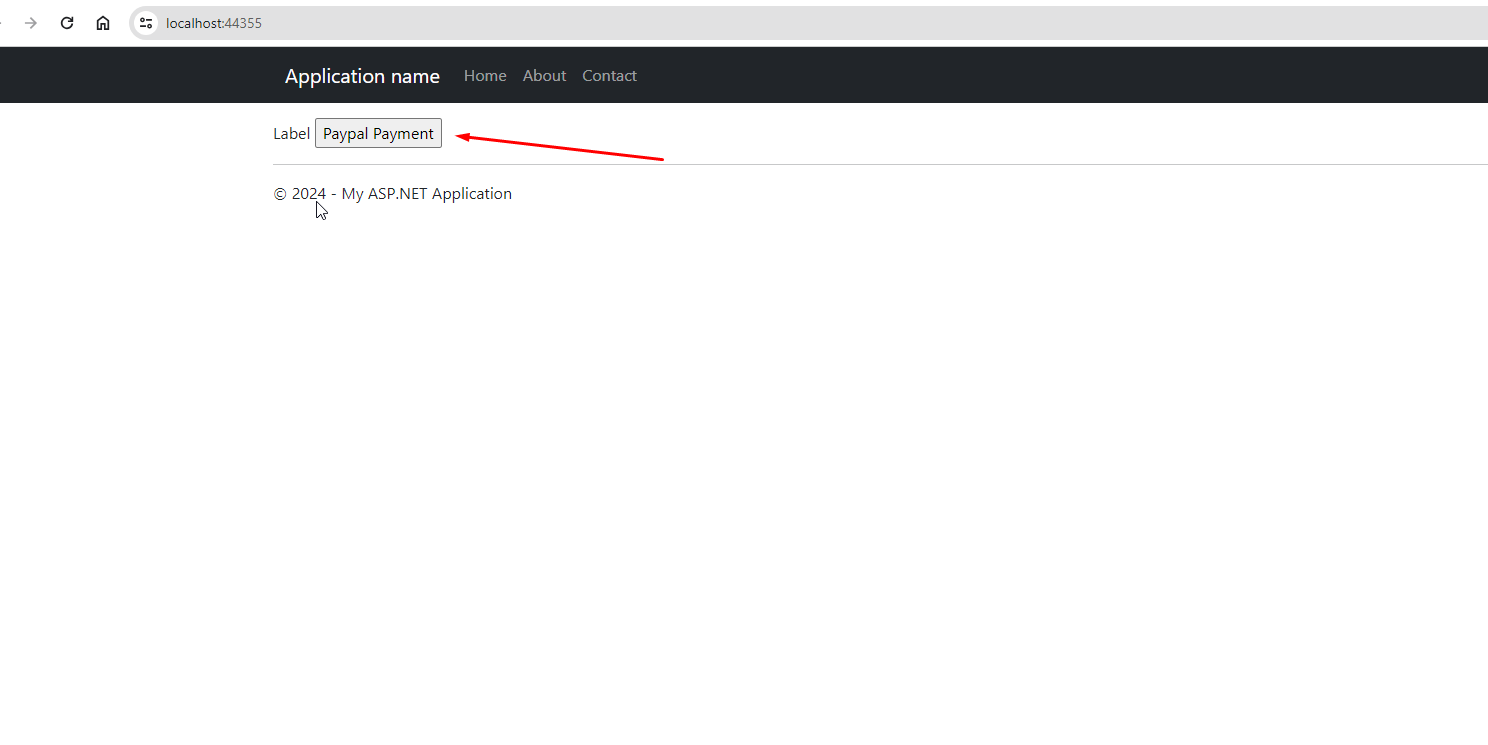
Click on the button and it will call event btnPayment_Click on aspx page. Now , it will create one default item and redirect on the payment page as showed below
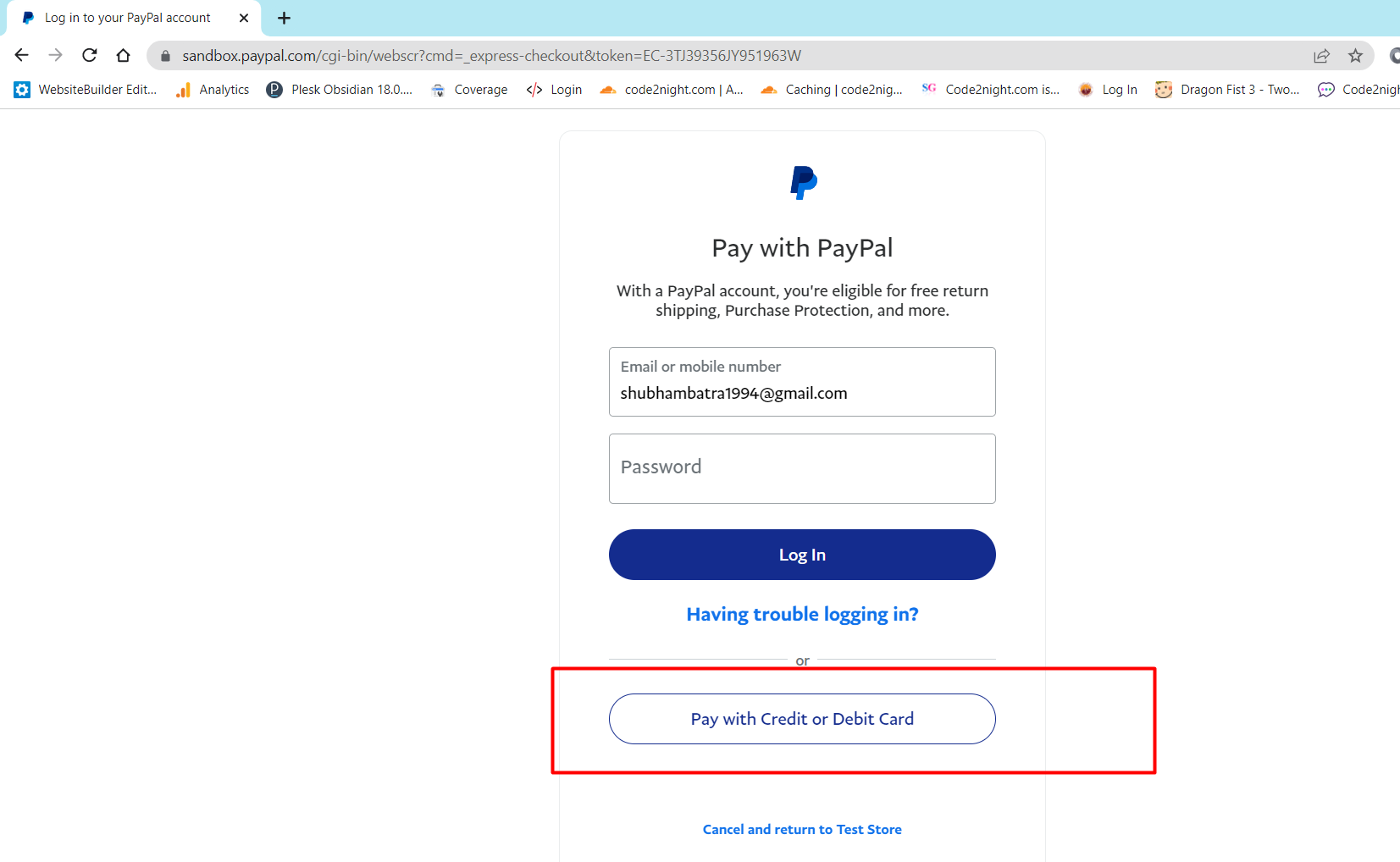
Now click on Pay with credit or debit card button and it will redirect on a screen where you will have to add card details.
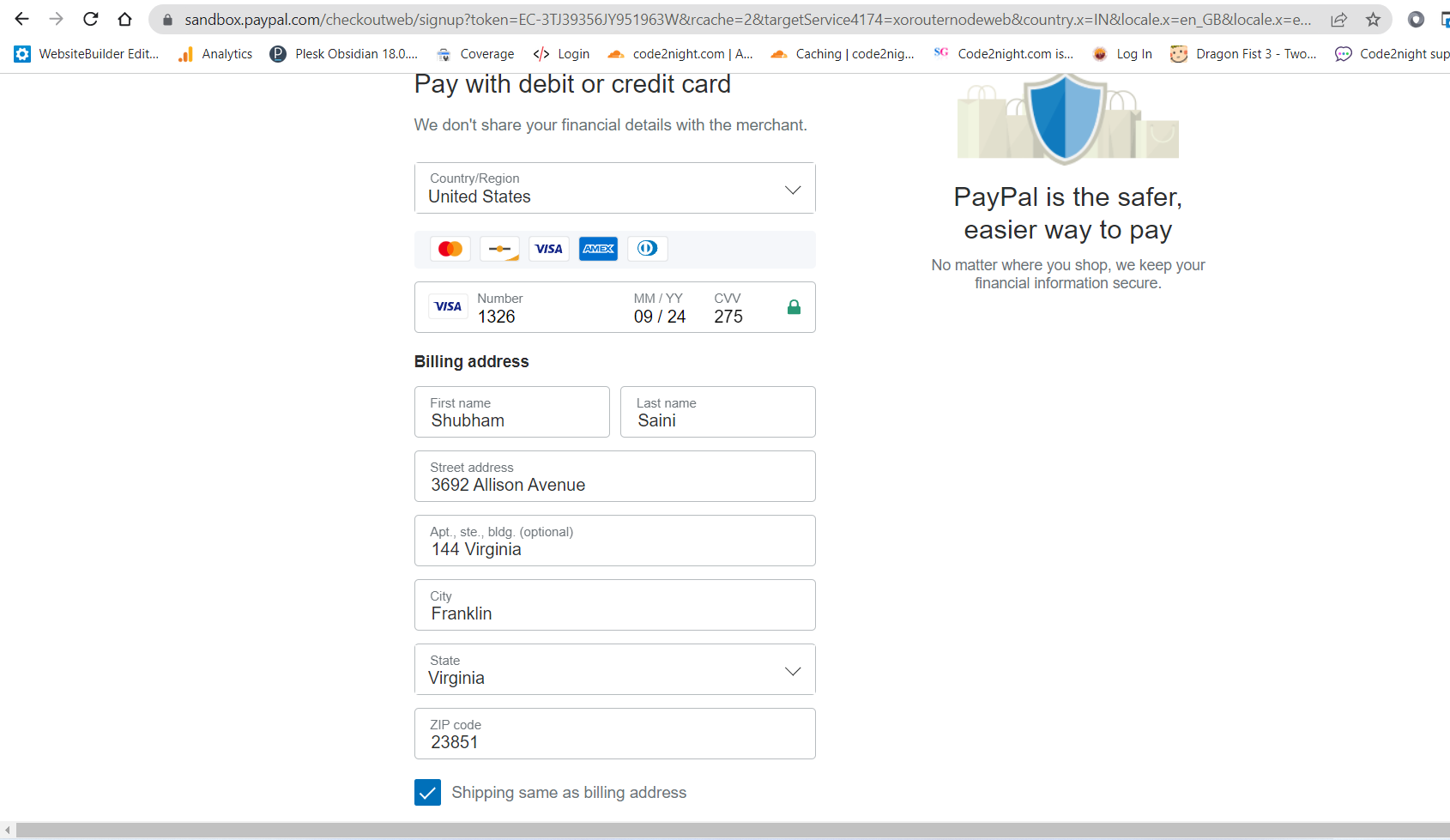
You can fill the follow details in here for sandbox testing
Country - United States
Card Type: Visa
Card Number: 4032034155351326
Expiration Date: 09/24
CVV: 275

Street:  4790 Deer Haven Drive
City:  Greenville
State/province/area:   South Carolina
Phone number  864-353-5437
Zip code  29601
Country calling code  +1
Now click on continue as guest and it will hit back the same method 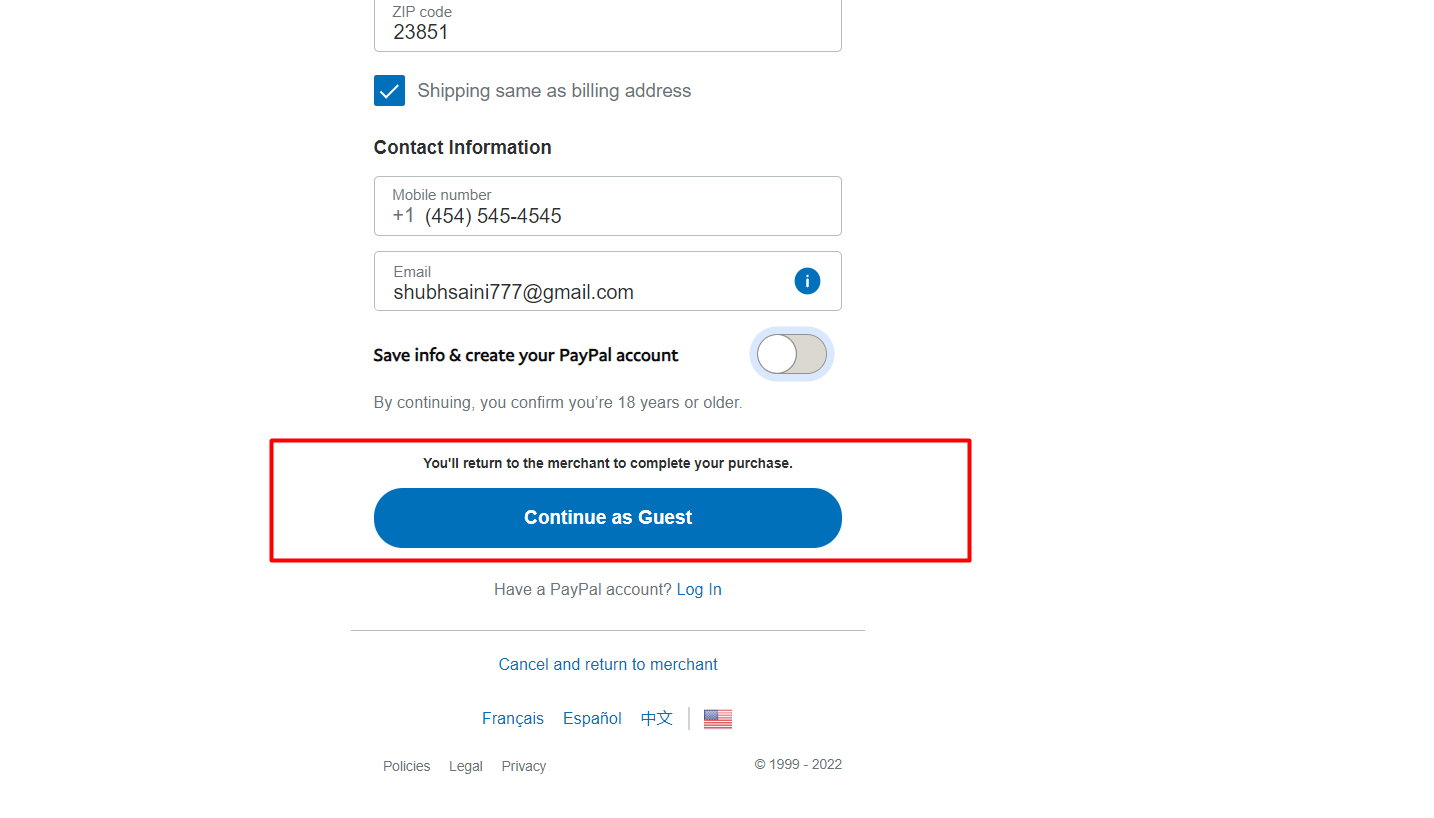 Here , you can add a breakpoint and check if your payment is approved
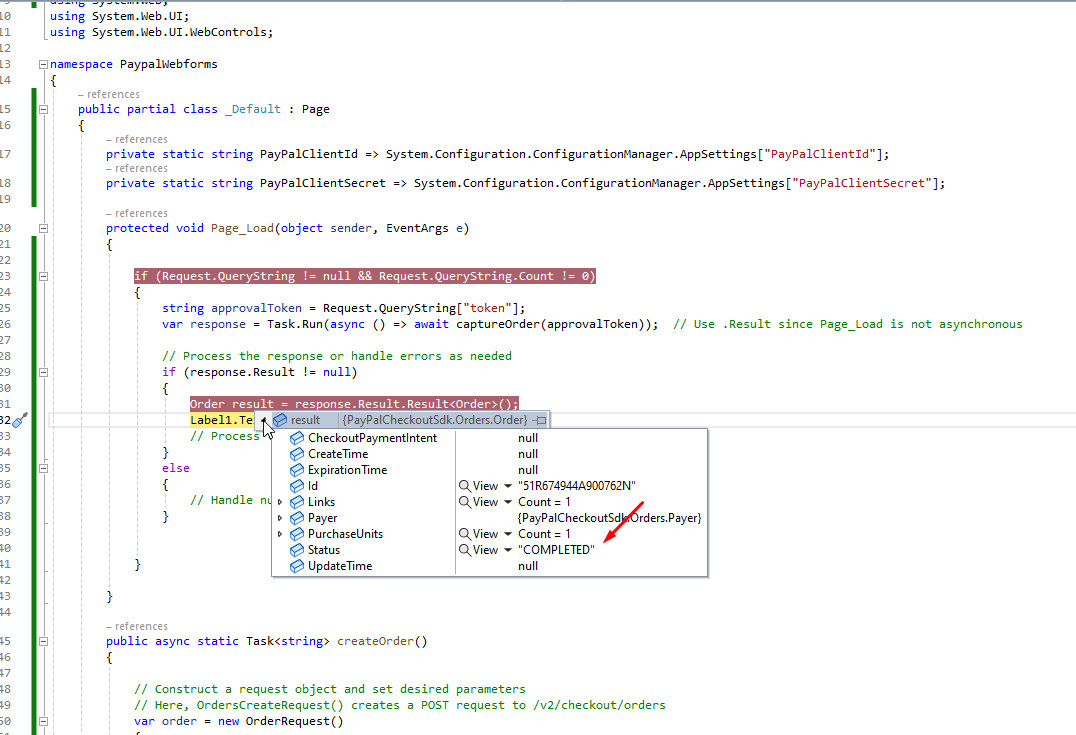
This is how we can have paypal integration in Asp.net Webforms or this is how we can integrate paypal in Asp.net Webforms. If you want to integrate paypal payment gateway in Asp.net mvc or Asp.Net core then you can check other blogs.
