HTTP Error 500.32 Failed to load ASP NET Core runtime
Understanding HTTP Error 500.32 - Failed to load .NET Core host
HTTP Error 500.32 indicates that the ASP.NET Core runtime could not be loaded due to various potential issues. This error typically occurs when deploying an ASP.NET Core application to a web server, such as Internet Information Services (IIS), and can prevent your application from running as expected.
Real-world scenarios where this error may arise include deploying a newly developed application, moving an application to a new server, or upgrading the .NET Core version. Understanding how to troubleshoot and resolve this issue is crucial for any developer working with ASP.NET Core.
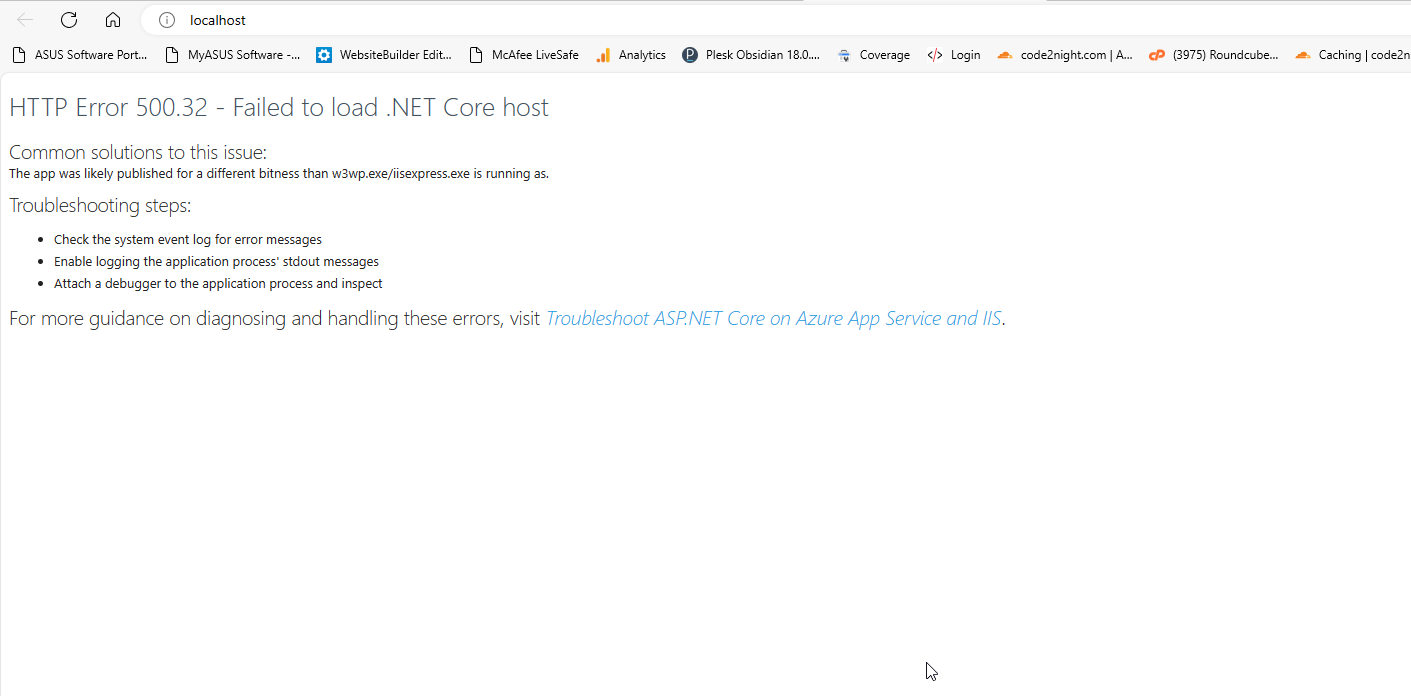
Common Causes of HTTP Error 500.32
Several factors can lead to the occurrence of HTTP Error 500.32. Below are some of the most common causes:
- Missing .NET Core Hosting Bundle: If the required .NET Core Hosting Bundle is not installed on the server, the application will fail to load the runtime.
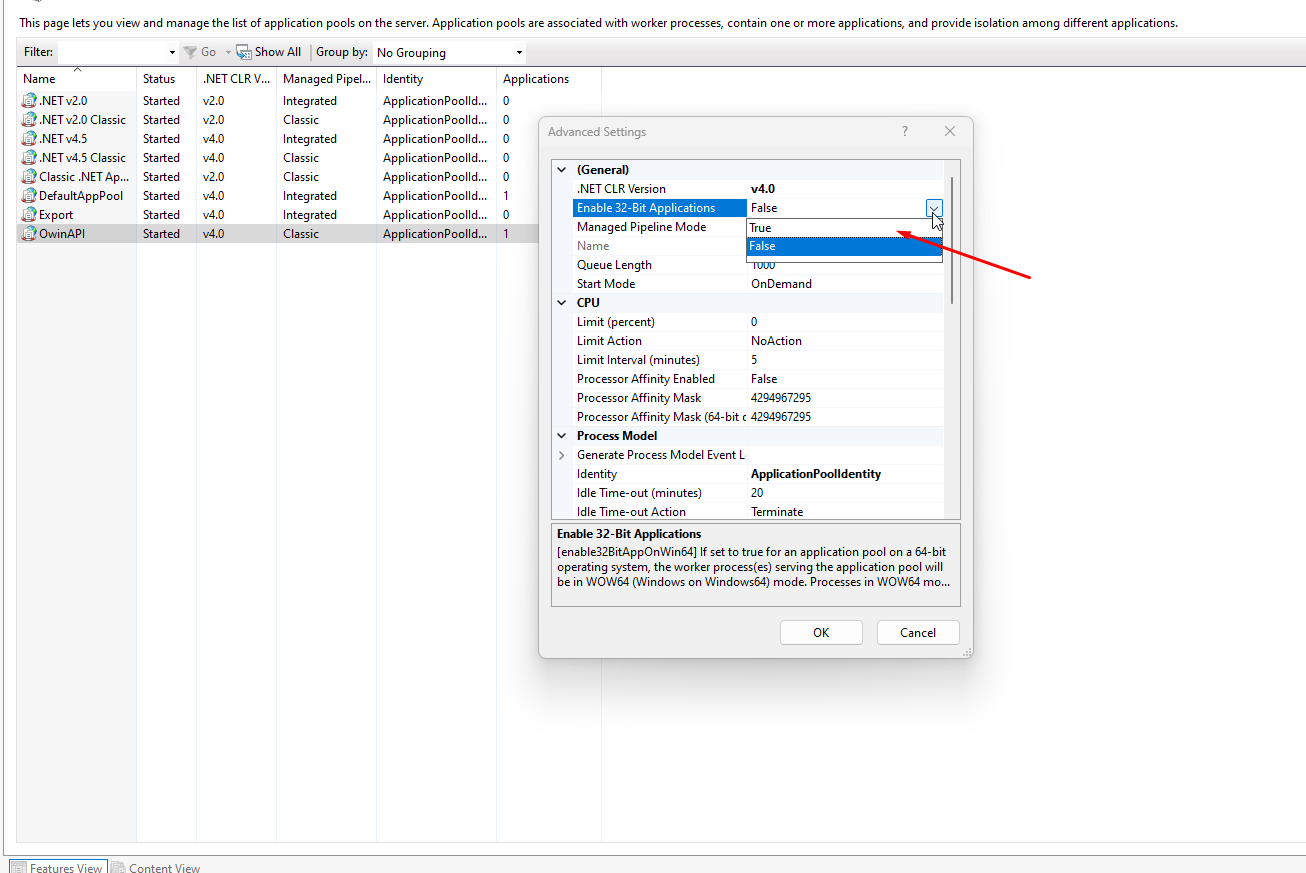
- Incorrect Application Pool Configuration: The application pool settings in IIS may not be set correctly, particularly the 'Enable 32-Bit Applications' setting.
- Version Mismatch: The application may be targeting a version of .NET Core that is not installed on the server.
Fixing HTTP Error 500.32
To resolve the HTTP Error 500.32, follow these steps:
- Check the .NET Core Hosting Bundle: Ensure that the correct version of the .NET Core Hosting Bundle is installed. You can download it from the official Microsoft website.
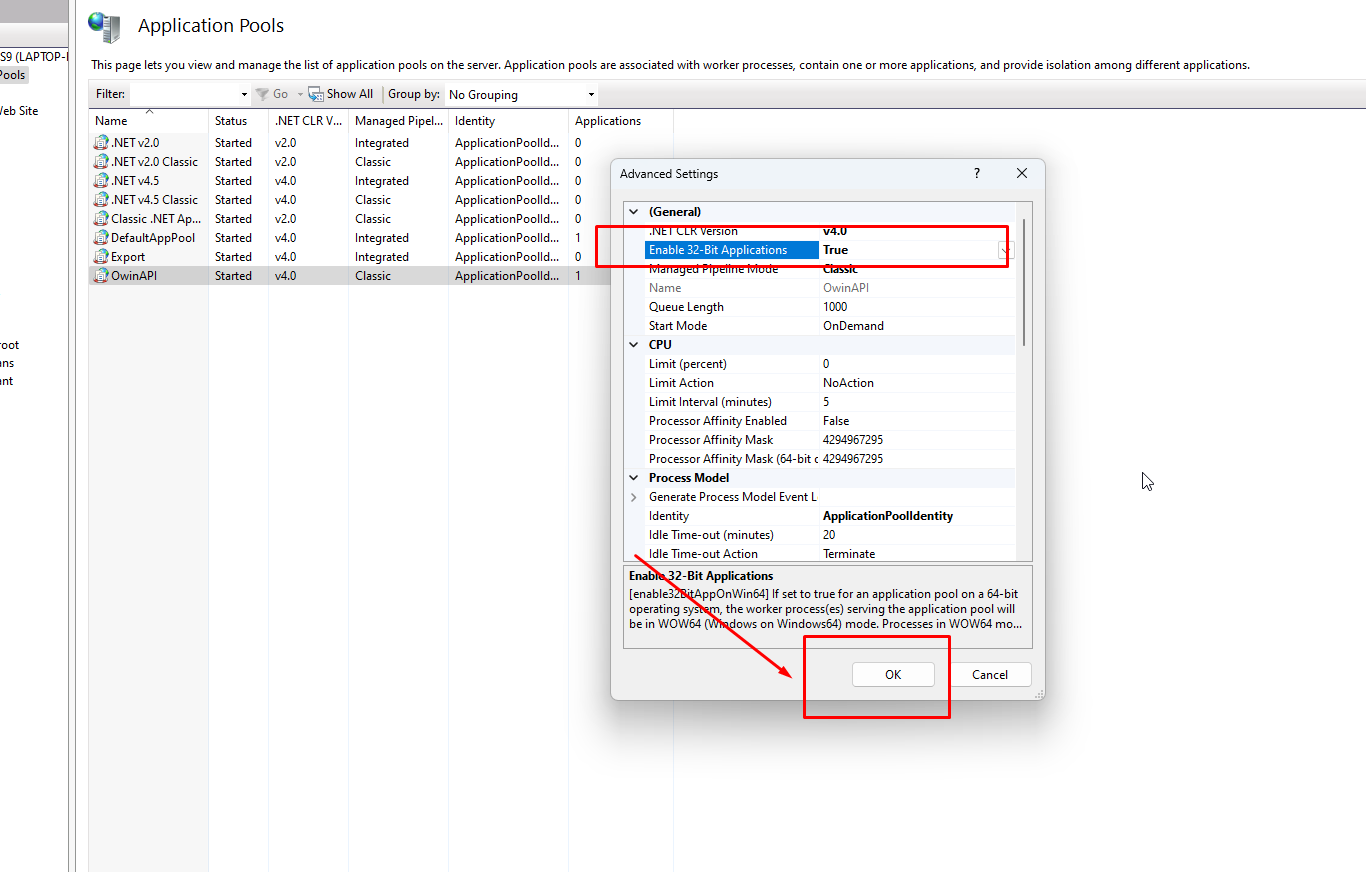
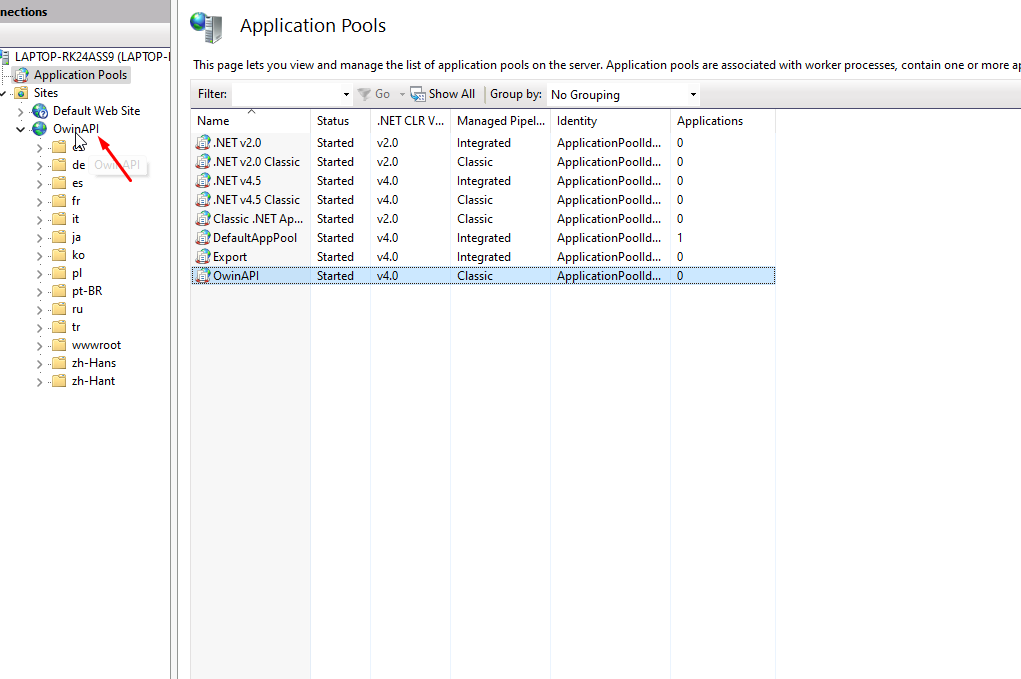
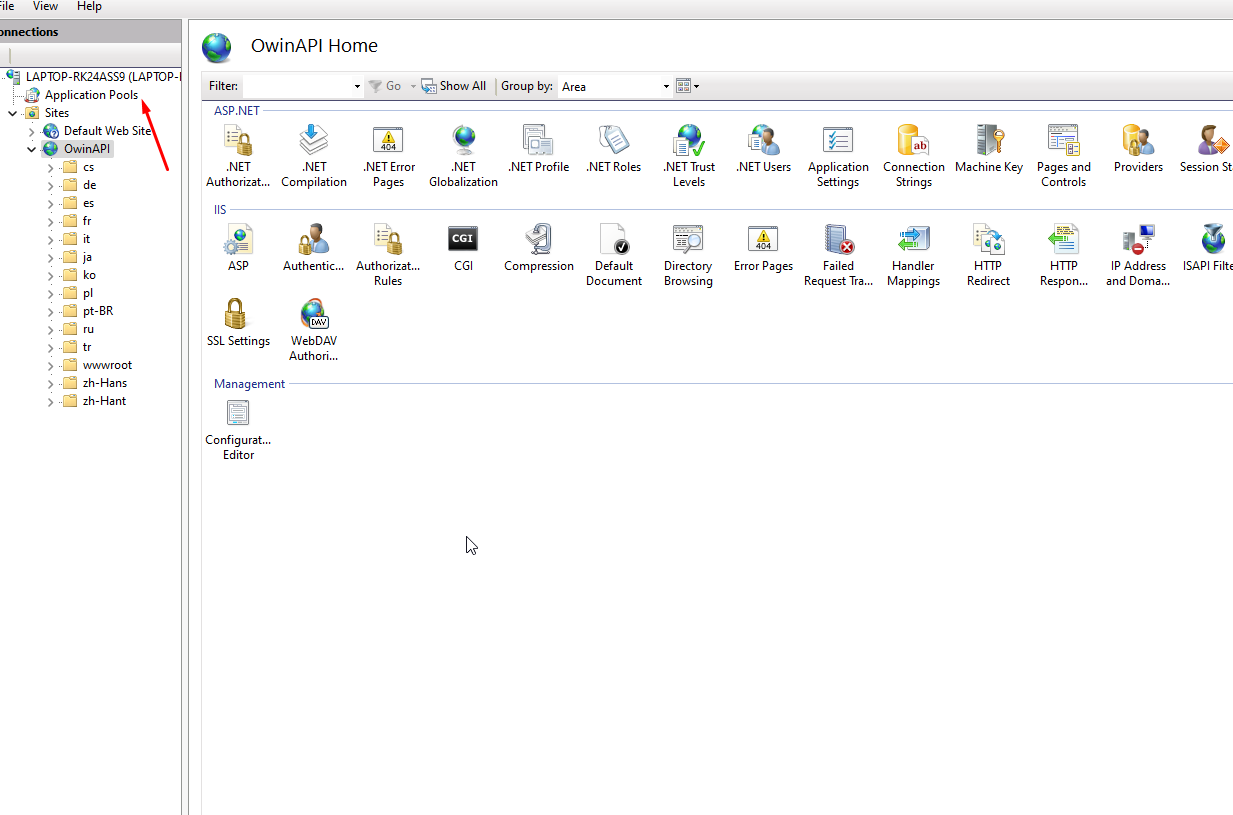
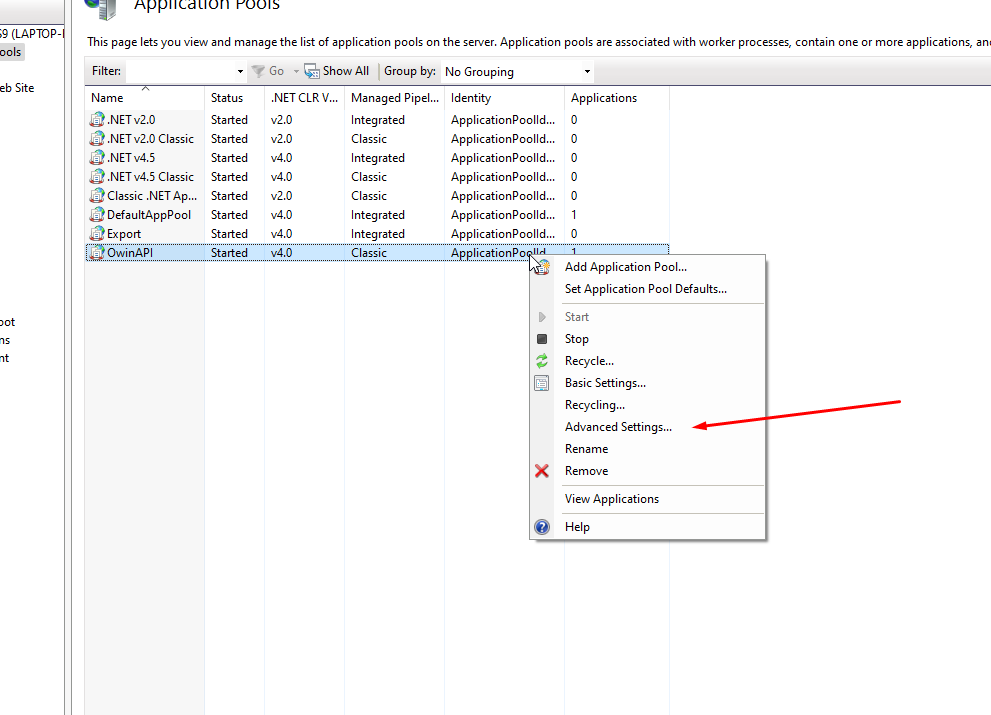
- Configure IIS Application Pool: Open IIS Manager and navigate to the 'Application Pools' section. Select the application pool associated with your application and right-click to access 'Advanced Settings.'
- Enable 32-Bit Applications: In the advanced settings, locate the 'Enable 32-Bit Applications' option and set it to 'True.' This is particularly important if your application is a 32-bit application.
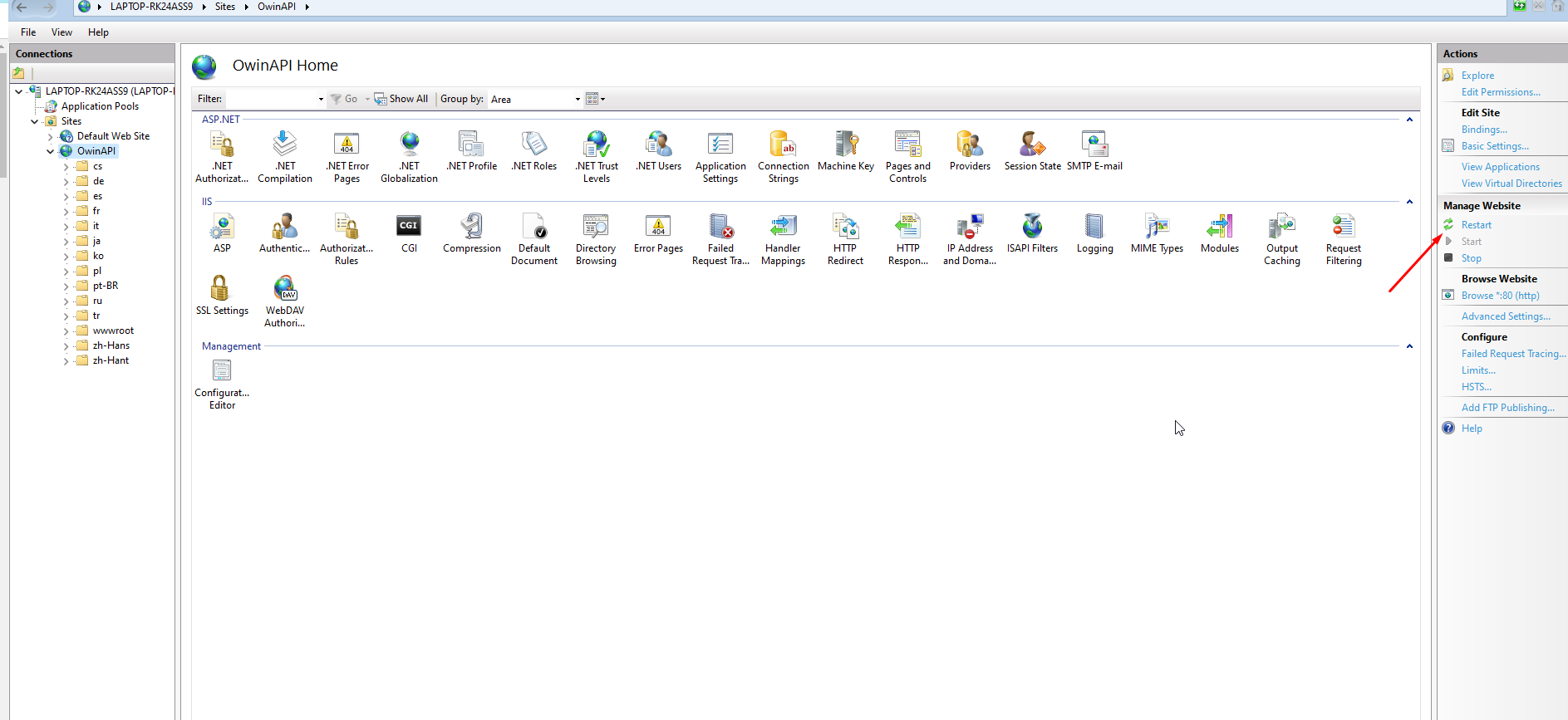
After making these changes, restart the application pool and reload your application in the browser. This should resolve the error.
Verifying the .NET Core Runtime Installation
To ensure that the .NET Core runtime is installed correctly, you can run a simple command in the command prompt:
dotnet --infoThis command will display the installed SDKs and runtimes. If your targeted version is not listed, you will need to install it.
Edge Cases & Gotchas
While resolving HTTP Error 500.32, it's important to consider some edge cases and common pitfalls:
- Multiple .NET Core Versions: If multiple versions of .NET Core are installed, ensure that your application is configured to use the correct version.
- Permissions Issues: Ensure that the application pool identity has the necessary permissions to access the application files and directories.
- Web.config Settings: Check your
web.configfile for any misconfigurations that might lead to this error.
Performance & Best Practices
To avoid encountering HTTP Error 500.32 and enhance the performance of your ASP.NET Core applications, consider the following best practices:
- Regularly Update .NET Core: Keep your .NET Core version up to date to benefit from the latest features and security patches.
- Monitor Application Pools: Regularly monitor and manage application pools in IIS to ensure they are running efficiently.
- Log Errors: Implement logging in your application to capture detailed error information. This will help you diagnose issues quickly.
Conclusion
Encountering HTTP Error 500.32 can be frustrating, but understanding its causes and how to resolve it is key to maintaining a healthy ASP.NET Core application. Here are the key takeaways:
- HTTP Error 500.32 indicates that the ASP.NET Core runtime could not be loaded.
- Common causes include missing the .NET Core Hosting Bundle and incorrect IIS application pool settings.
- Always verify that the correct version of .NET Core is installed on the server.
- Implement best practices for monitoring and updating your applications to prevent future errors.