Code syntax higlighter using Prism js
Recognizing the Issue
As developers, we often find ourselves creating blogs to share knowledge, insights, or tutorials related to programming. When it comes to programming blogs, displaying code snippets properly is crucial for reader comprehension. While basic HTML provides specific tags like <pre> and <code> for code sections, these tags alone often fall short in providing the necessary formatting and styling required for clear code presentation.
For example, consider a simple C# code snippet:
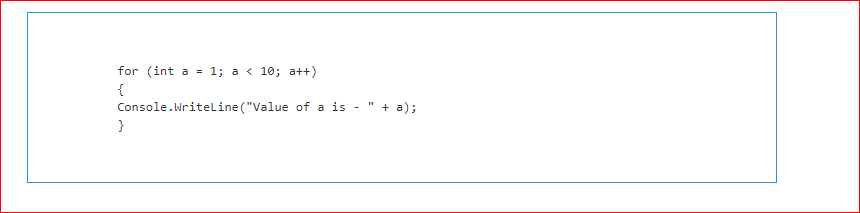
for (int a = 1; a < 10; a++) { Console.WriteLine("Value of a is - " + a); }When displayed using just the <pre> and <code> tags, the output appears as a plain text block, lacking any visual appeal or clarity. Without adequate styling, readers may struggle to differentiate between various elements of the code.
What is Prism.js?
Prism.js is a lightweight, extensible syntax highlighter that is built with modern web standards in mind. It supports a wide range of programming languages and provides various themes and plugins to enhance code presentation. With Prism.js, you can not only colorize your code snippets but also add features like line numbers, highlighting specific lines, and more.
One of the standout features of Prism.js is its versatility; it supports syntax highlighting for many popular programming languages, including C#, Java, JavaScript, CSS, HTML, and more. This makes it an excellent choice for developers who want their code to be presented clearly and attractively on their websites.
Getting Started with Prism.js
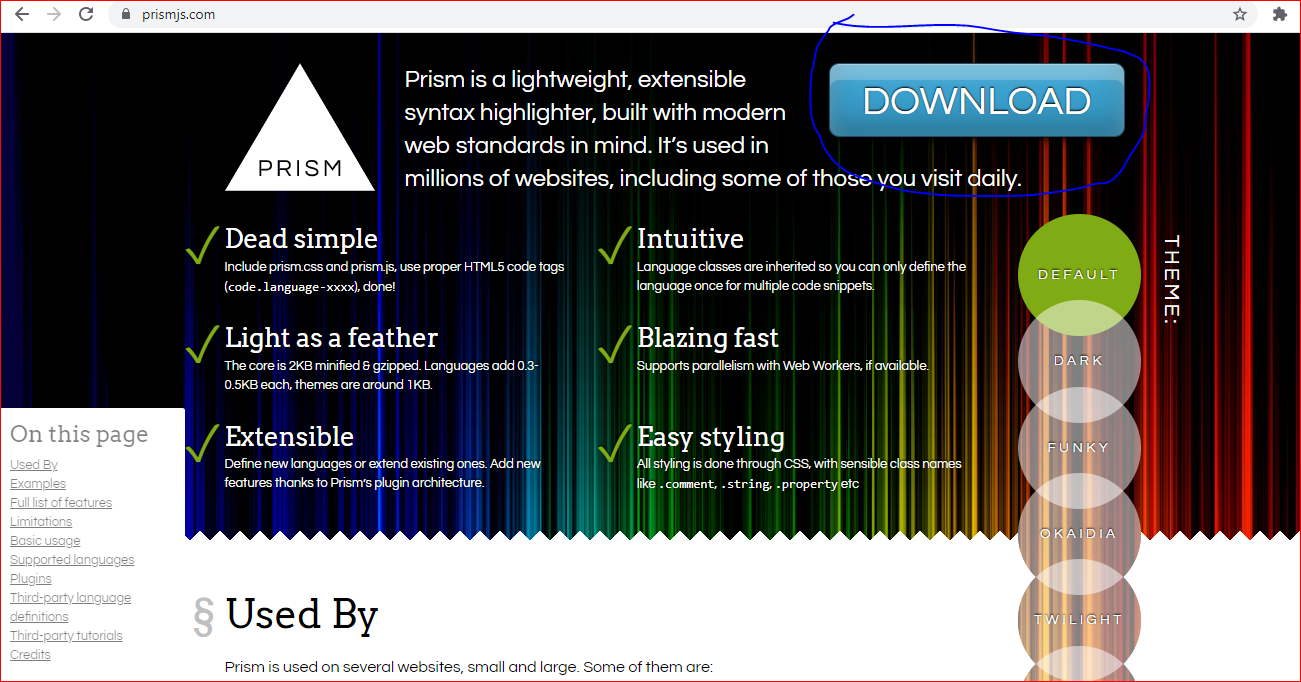
To start using Prism.js, the first step is to visit the official website at prismjs.com. Here, you can customize your download by selecting the languages and features you need for your project. Once you've made your selections, click on the download button, which will take you to a page where you can find the necessary files.
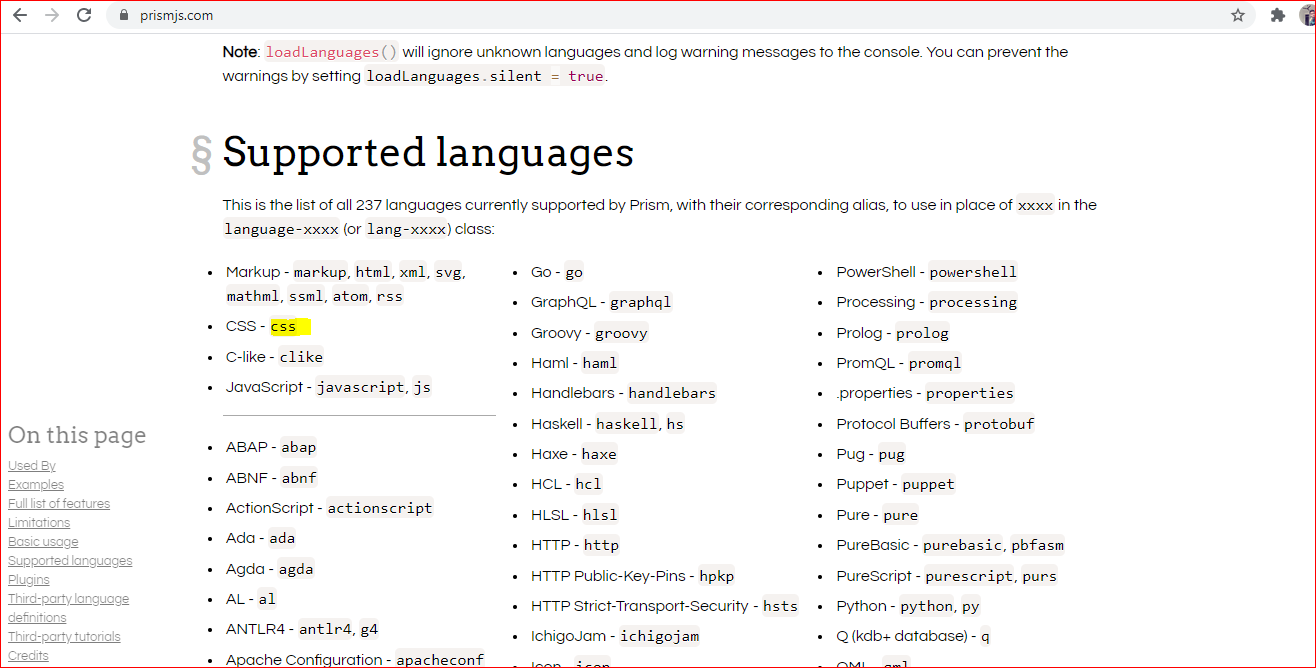
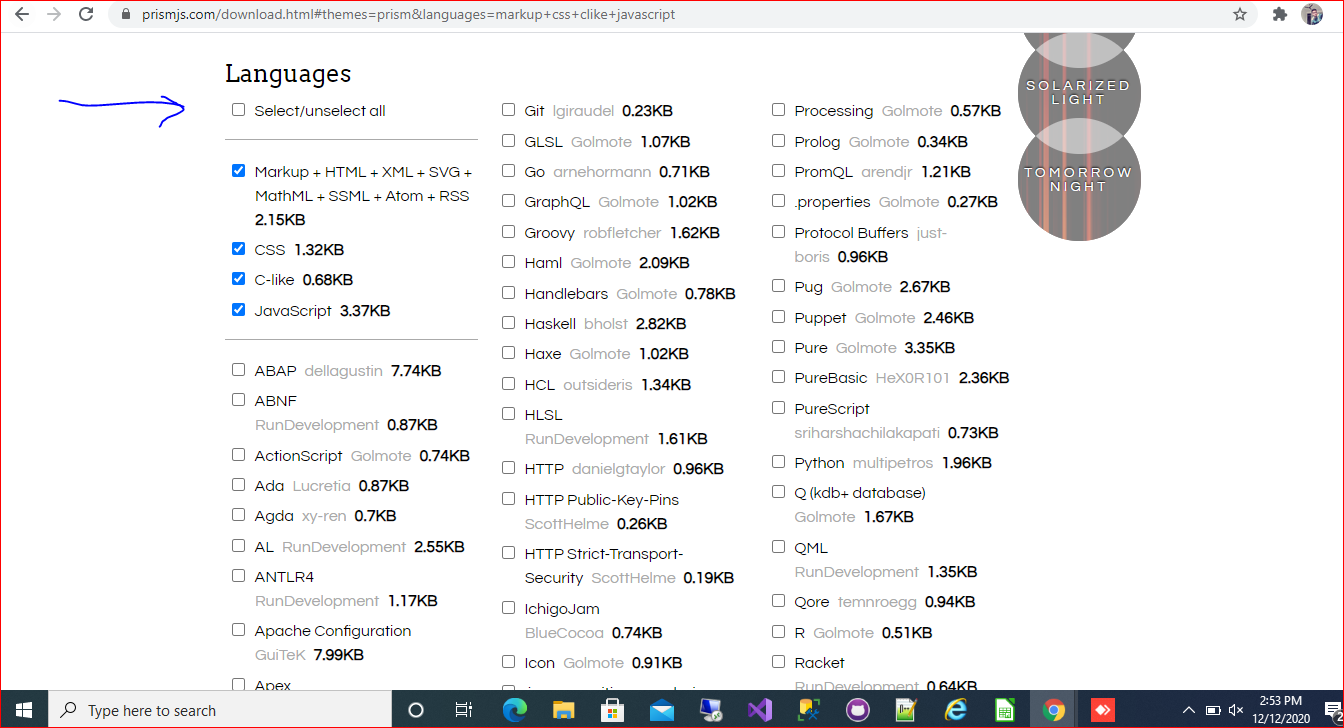
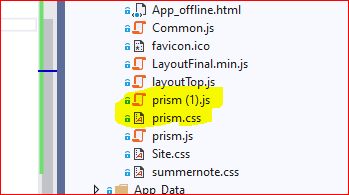
On the download page, you'll see a list of languages supported by Prism.js. You can choose to include all languages or select specific ones based on your requirements. After making your selections, scroll down to find the download buttons for the JavaScript and CSS files. Download both files and place them in your project directory.
<link rel="stylesheet" href="prism.css">
<script src="prism.js"></script>
Next, link these files in the <head> section of your HTML document. Ensure you include the CSS file before the JavaScript file to maintain proper styling. The basic setup would look like this:
Applying Syntax Highlighting
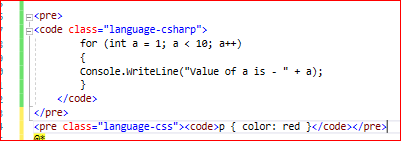
To apply syntax highlighting to your code snippets, you need to add specific classes to the <code> tags. For example, to highlight C# code, you would use the class language-csharp. This class indicates to Prism.js that the code inside the tag should be highlighted according to C# syntax rules.
Here’s an example of how to structure your HTML code:
<pre>
  <code class="language-csharp">
    for (int a = 1; a < 10; a++) { Console.WriteLine("Value of a is - " + a); }
  </code>
</pre>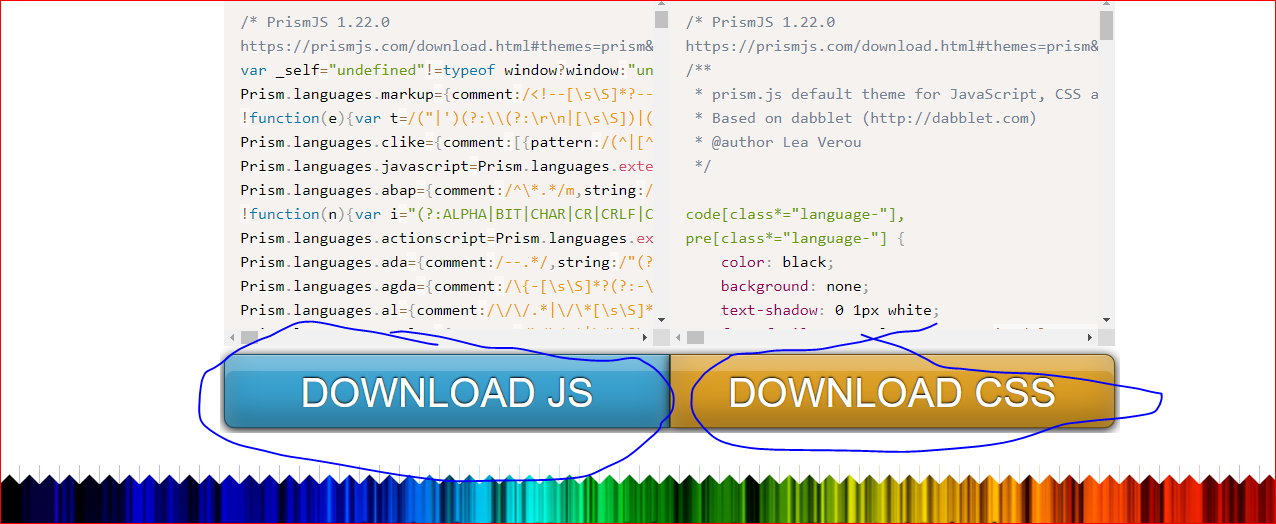
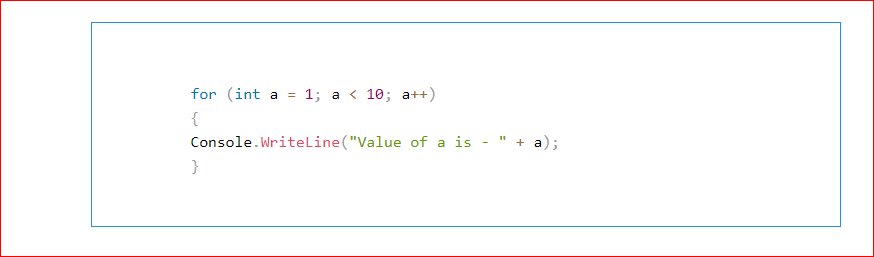
By adding the appropriate class, you can see how Prism.js beautifies your code snippets with colorful formatting, making it easier for readers to follow along.
Advanced Features of Prism.js
Beyond basic syntax highlighting, Prism.js offers several advanced features that can enhance your code presentation. For instance, you can enable line numbers for your code snippets, which is particularly useful for tutorials or when referencing specific lines in discussions.
To enable line numbers, you need to include the line-numbers plugin during your setup. After downloading the plugin, link it in your HTML document:
<link rel="stylesheet" href="prism-line-numbers.css">
<script src="prism-line-numbers.js"></script>
Then, simply add the line-numbers class to your <pre> tag:
<pre class="line-numbers">
  <code class="language-csharp">
    for (int a = 1; a < 10; a++) { Console.WriteLine("Value of a is - " + a); }
  </code>
</pre>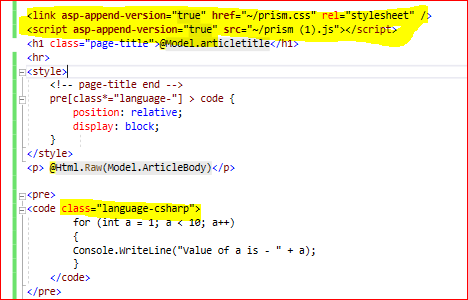
Edge Cases & Gotchas
While Prism.js is a powerful tool for syntax highlighting, there are some edge cases and gotchas to keep in mind. For example, if your code snippets contain HTML entities (like < or >), you must ensure they are correctly escaped to prevent rendering issues.
Another common issue arises when using Prism.js with dynamically loaded content. If you load content via AJAX or similar methods after the Prism.js script has already run, the new code will not be highlighted automatically. To address this, you can use the Prism.highlightAll() method after loading new content to reapply the highlighting.
Performance & Best Practices
When using Prism.js, it's essential to follow best practices to ensure optimal performance. First, only include the languages and plugins you need. This helps reduce the overall size of your JavaScript and CSS files, leading to faster load times.
Additionally, consider using async or defer attributes when linking the Prism.js script to prevent blocking the rendering of your page. This can enhance the user experience, especially on pages with a significant amount of content.
Lastly, always test your code snippets in various browsers to ensure compatibility and proper rendering across different environments.
Conclusion
In summary, Prism.js is an excellent tool for enhancing the presentation of code snippets on your website. By following the steps outlined in this article, you can easily integrate syntax highlighting into your blogs, making your content more engaging and readable. Key takeaways include:
- Prism.js is lightweight and supports a wide range of programming languages.
- Properly linking CSS and JavaScript files is crucial for functionality.
- Adding specific classes to
<code>tags allows for language-specific highlighting. - Advanced features like line numbers can enhance the usability of code snippets.
- Always consider performance and best practices when implementing syntax highlighting.