
Database Backup .bak
What is a Database Backup .bak?
A database backup is a process of creating a copy of your database to protect against data loss due to hardware failure, software bugs, or other unforeseen events. The .bak file format is the native backup format used by SQL Server, encapsulating all the data and structures of the database at the time of the backup.
In real-world applications, maintaining regular backups is essential for disaster recovery. For instance, if a database becomes corrupted or if there is accidental data deletion, having a recent .bak file allows you to restore the database to its previous state, minimizing downtime and data loss.
Prerequisites
Before proceeding with creating a .bak file, ensure that you have the following prerequisites:
- SQL Server Management Studio (SSMS): This tool is essential for managing SQL Server databases and executing backup operations.
- Database Access: You must have the necessary permissions to access the database you want to back up.
- Storage Space: Ensure that there is sufficient storage space in the designated backup directory to accommodate the .bak file.
Steps to Create a .bak File
Step 1: Open SQL Server Management Studio
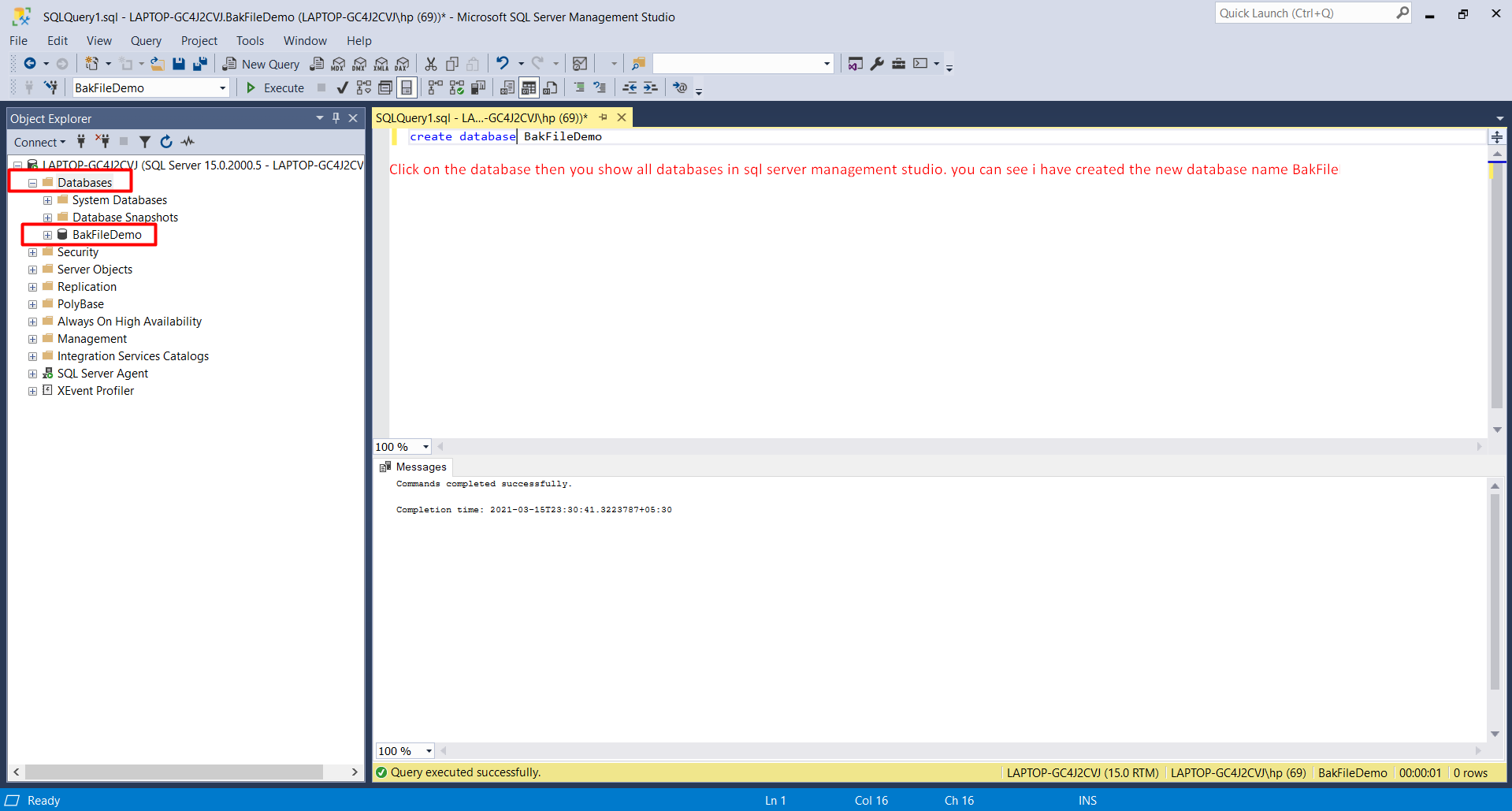
Begin by launching SQL Server Management Studio. Once opened, connect to the SQL Server instance where your database resides. After connecting, navigate to the 'Databases' node in the Object Explorer. Here, you will see a list of all databases available on your server.
Step 2: Right-Click on the Database
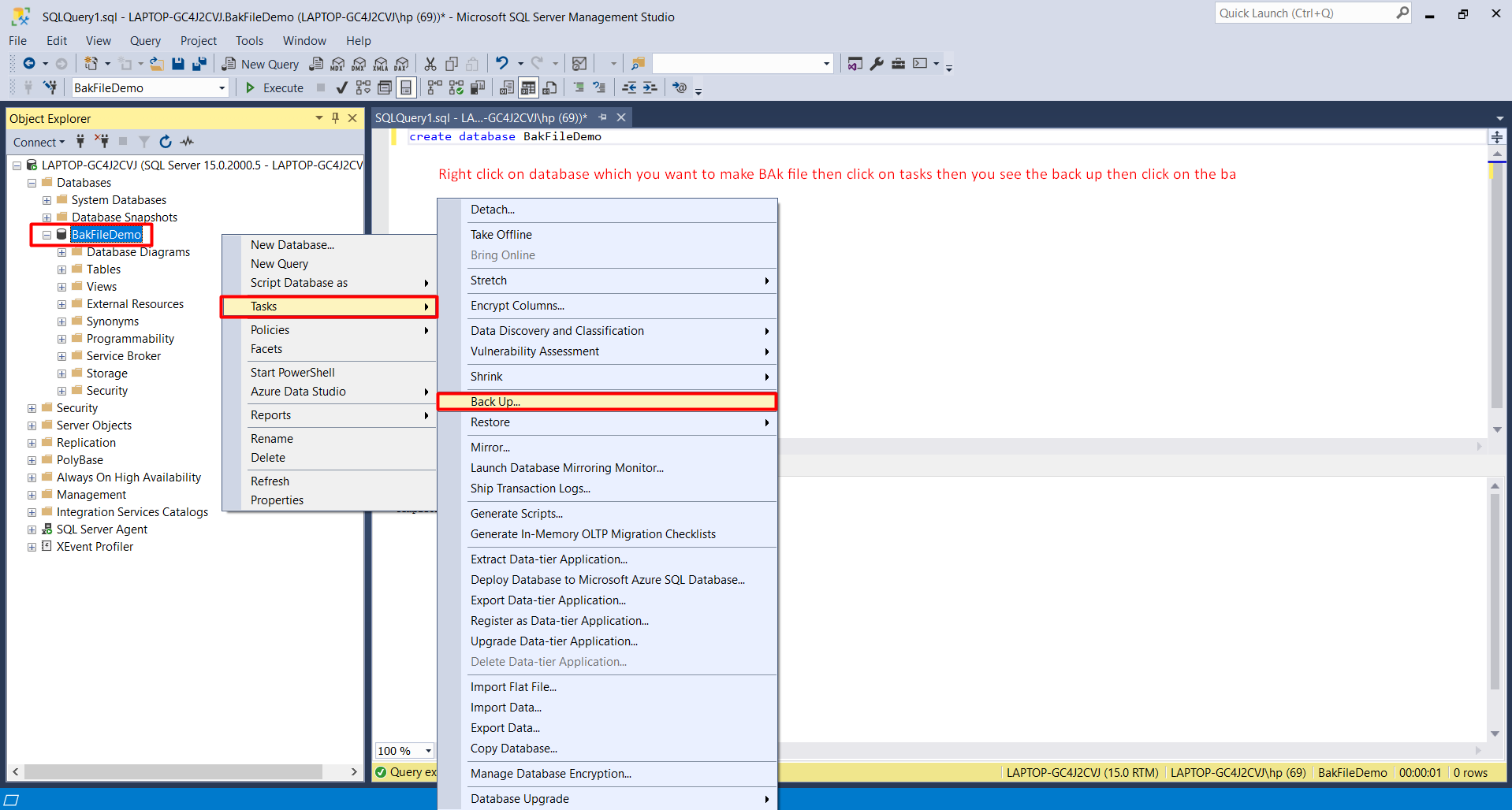
Locate the database you want to back up (for example, 'BakFileDemo'). Right-click on the database name, hover over the 'Tasks' option, and then select 'Back Up...'. This will open a new dialog window where you can configure your backup settings.
Step 3: Configure Backup Options
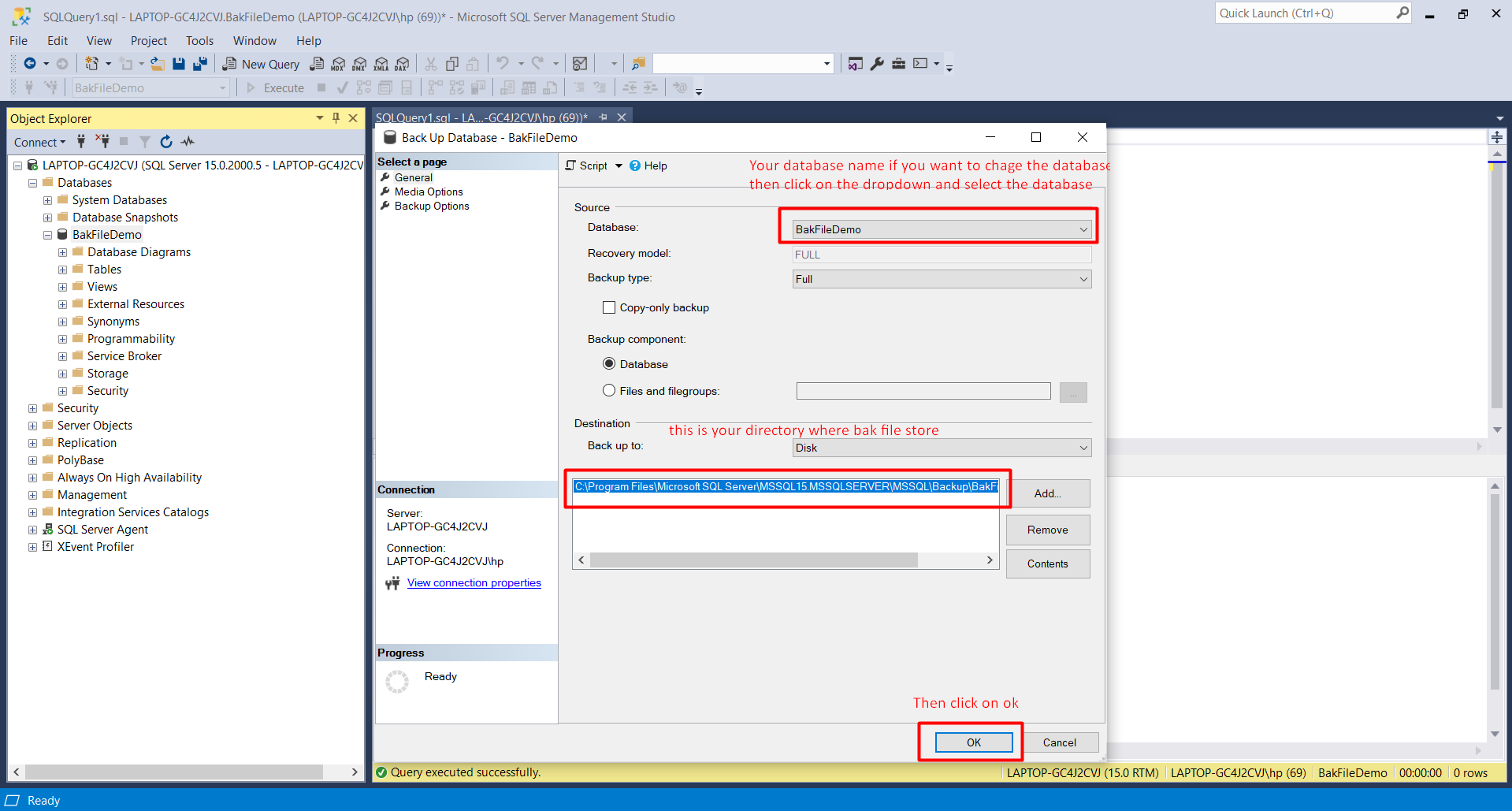
In the backup dialog, you can specify several options, including the backup type (full, differential, or transaction log) and the destination for the backup file. Ensure that 'Full' is selected for a complete backup. Under the 'Destination' section, you can either choose to save the backup to a disk or tape. If saving to a disk, click on 'Add' to specify the file path where the .bak file will be created.
Step 4: Execute the Backup
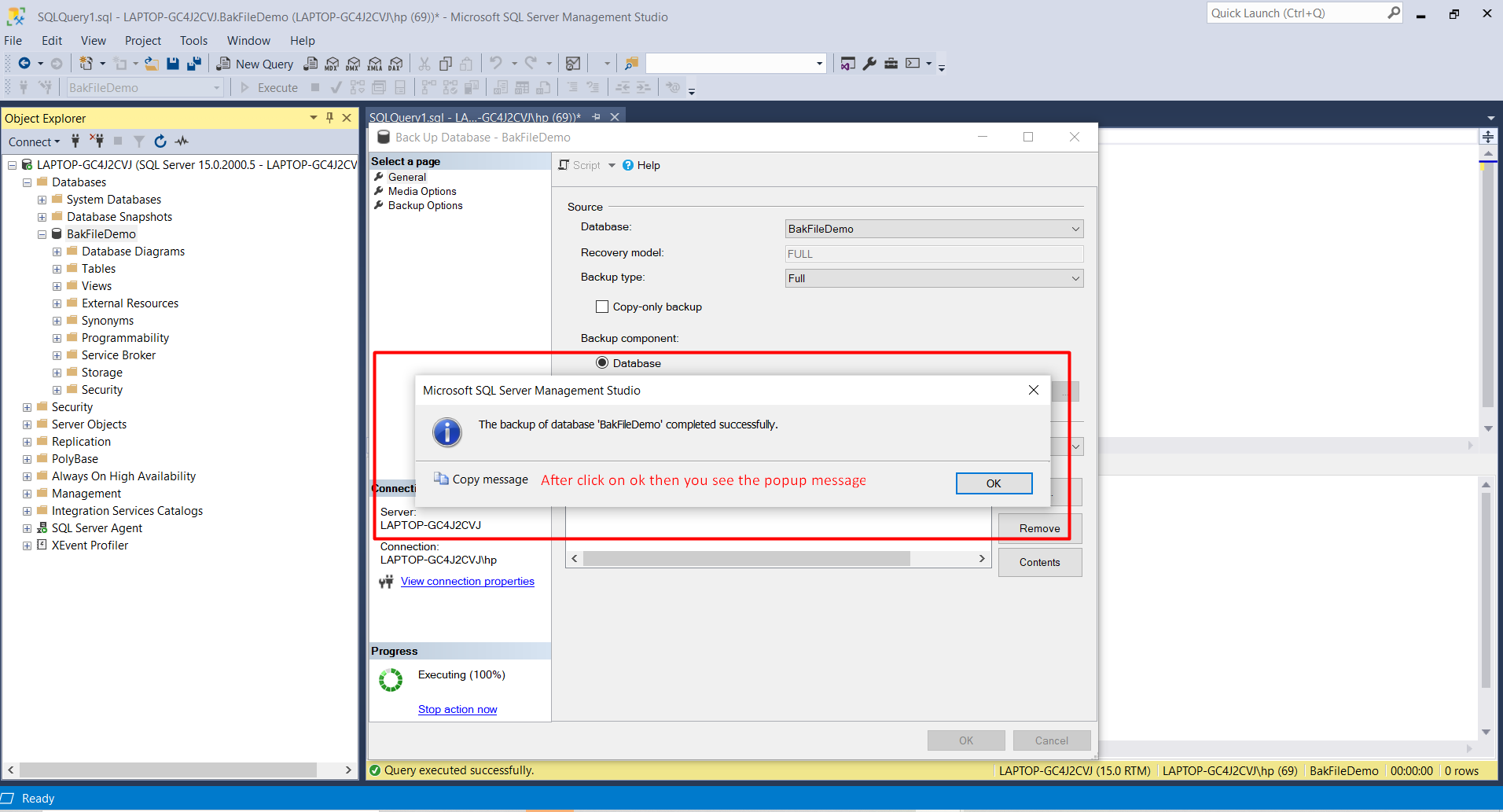
After configuring the backup options, click 'OK' to initiate the backup process. A progress dialog will appear, indicating the status of the backup operation. Once completed, you will receive a confirmation message.
Step 5: Locate the .bak File
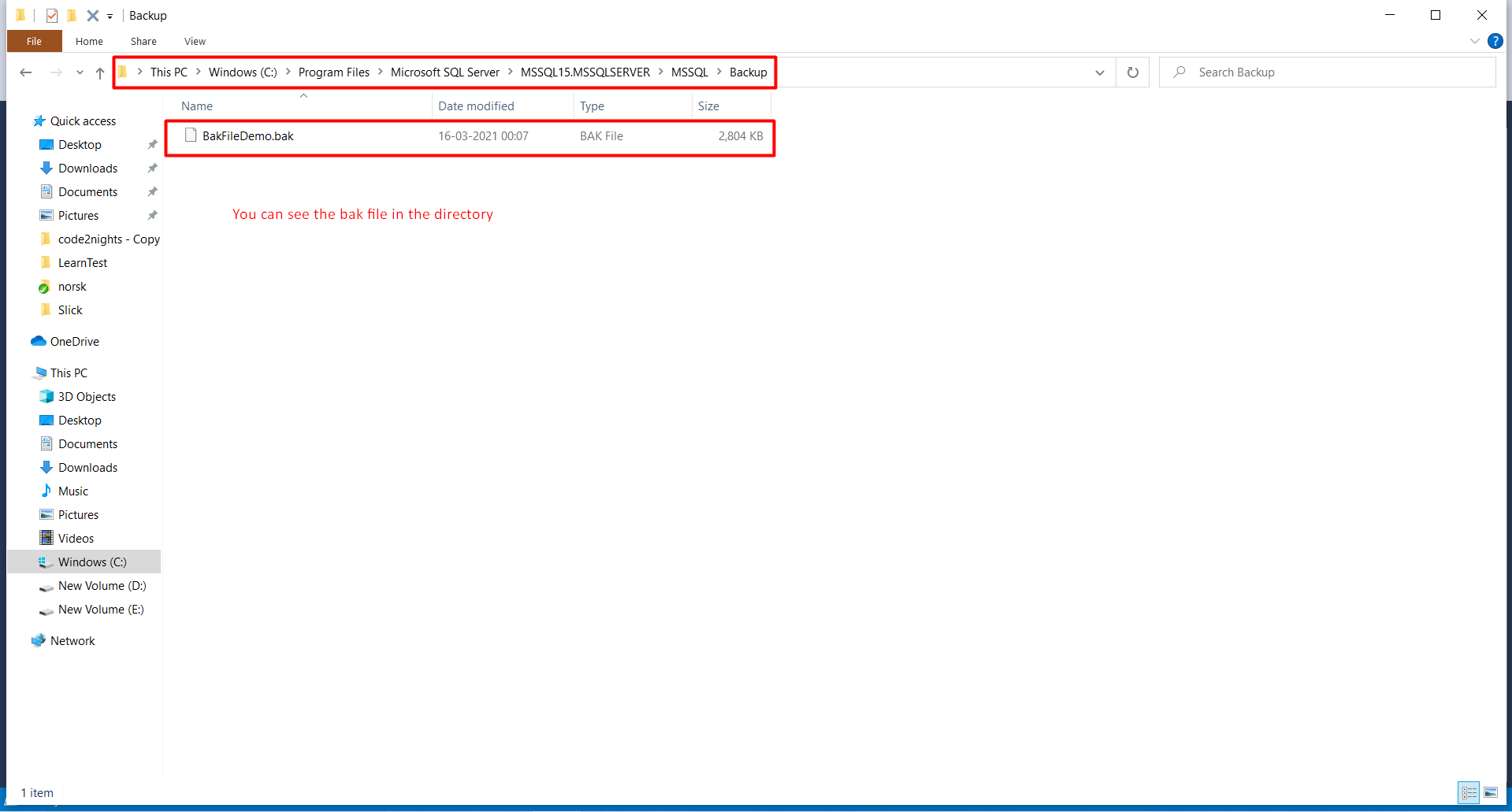
To locate your newly created .bak file, open File Explorer and navigate to the directory you specified during the backup process. By default, SQL Server backups are often stored in C:\Program Files\Microsoft SQL Server\MSSQL15.MSSQLSERVER\MSSQL\Backup\. You can also search for files with the .bak extension to find your backup quickly.
Restoring a Database from a .bak File
Restoring a database from a .bak file is just as straightforward as creating one. To do this, right-click on the 'Databases' node in SSMS and select 'Restore Database...'. In the restore dialog, choose 'Device' and then specify the .bak file you want to restore from. Ensure you select the correct options for overwriting the existing database if necessary.
RESTORE DATABASE BakFileDemo
FROM DISK = 'C:\Program Files\Microsoft SQL Server\MSSQL15.MSSQLSERVER\MSSQL\Backup\BakFileDemo.bak'
WITH REPLACE;
Edge Cases & Gotchas
When performing backups and restores, several edge cases and gotchas can arise:
- Insufficient Disk Space: Always ensure that there is enough disk space for the backup file. A lack of space can cause the backup process to fail.
- Permissions Issues: Ensure that your SQL Server service account has the necessary permissions to write to the specified backup directory.
- Backup File Corruption: Occasionally, .bak files can become corrupted. Regularly test your backup files by restoring them to ensure their integrity.
- Backup Types: Understand the differences between full, differential, and transaction log backups to choose the appropriate strategy for your needs.
Performance & Best Practices
To optimize the backup and restore process, consider the following best practices:
- Schedule Regular Backups: Implement a backup schedule that fits your data change frequency. For example, daily full backups with hourly transaction log backups can provide a good balance.
- Use Compression: SQL Server supports backup compression which reduces the size of the .bak file and can speed up the backup process.
- Monitor Backup Jobs: Regularly monitor your backup jobs to ensure they are completing successfully and address any failures promptly.
- Test Restores: Periodically test your backup files by restoring them to a test environment to ensure that your backup strategy is effective.
Conclusion
In conclusion, creating and managing .bak files in SQL Server is a straightforward process that is vital for data integrity and disaster recovery. By following the steps outlined in this tutorial, you can ensure that your databases are regularly backed up and can be restored when needed.
- Understand the importance of regular database backups.
- Follow the step-by-step process to create .bak files in SQL Server.
- Be aware of edge cases and best practices to optimize your backup strategy.
- Regularly test your backups to ensure they can be restored effectively.
