Export to Excel in Angular using ExcelJS?
Welcome to Code2Night! In this blog post, we will explore how to export data from an Angular application to Excel using the ExcelJS library. Excel is a popular file format used for storing and analyzing large amounts of data, and ExcelJS is an excellent library for creating and manipulating Excel files programmatically.
Let’s first create a new Angular project using the Angular CLI tool by executing the following command
ng new export-to-excel
? Would you like to add Angular routing? No
? Which stylesheet format would you like to use? SCSS
Move inside the project
cd angular-export-to-excel
If you have Visual Studio Code installed, open the project by hitting
code .
Install Required Packages
Install ExcelJs
Run the following command to install the ExcelJs package which is the main player to deal with Excel format-related functionalities we want to achieve
npm install --save exceljs@1.12.0
Install FileSaver
FileSave.js is a lifesaver we must say when dealing with operations related to saving files on the disk. It is mainly used on client-side applications to save large files in web applications.
Run the following command to install the file-saver package
npm install --save file-saver
Create a Service for ExcelJs
Now we’ll create a new Service to keep Excel-related methods in one place. Run the following command to generate service in the services folder
ng generate service services/export-excel
Update the ExportExcelService Now open the services/ export-excel.service.ts file and make the following changes:
import { Injectable } from '@angular/core';
import { Workbook } from 'exceljs';
import * as fs from 'file-saver';


@Injectable({
  providedIn: 'root'
})
export class ExportExcelService {
  dataForExcel = [];
  constructor() { }

  exportExcel(excelData: any, arrayData: any) {
    debugger
    arrayData.forEach((row: any) => {
      excelData.data.push(Object.values(row))
    })

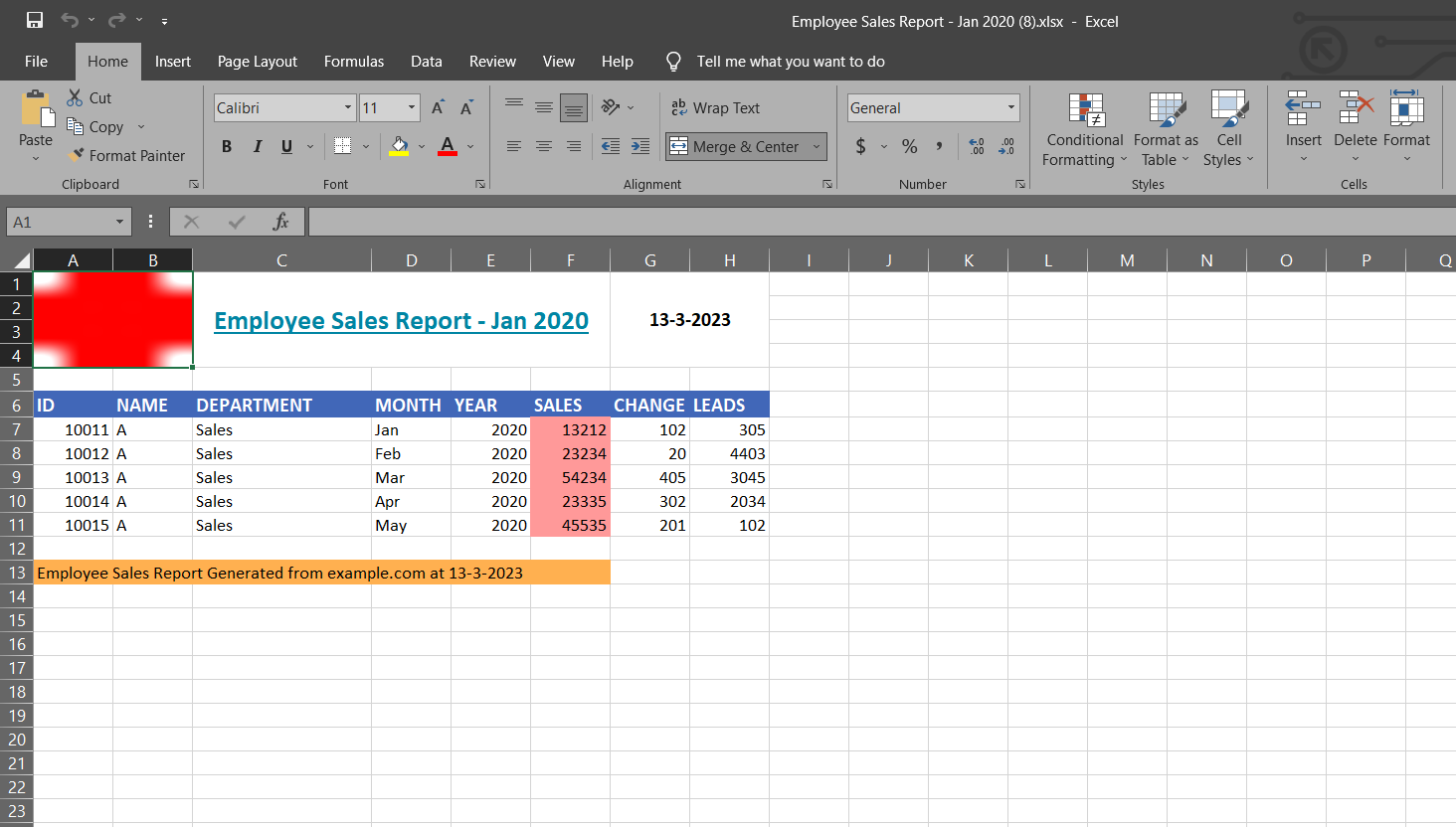
    //Title, Header & Data
    const title = excelData.title;
    const header = excelData.headers
    const data = excelData.data;
    const logoBase64 = "data:image/png;base64,iVBORw0KGgoAAAANSUhEUgAAAAUAAAAFCAYAAACNbyblAAAAHElEQVQI12P4//8/w38GIAXDIBKE0DHxgljNBAAO9TXL0Y4OHwAAAABJRU5ErkJggg==";

    //Create a workbook with a worksheet
    let workbook = new Workbook();
    let worksheet = workbook.addWorksheet('Sales Data');


    //Add Row and formatting
    worksheet.mergeCells('C1', 'F4');
    let titleRow = worksheet.getCell('C1');
    titleRow.value = title
    titleRow.font = {
      name: 'Calibri',
      size: 16,
      underline: 'single',
      bold: true,
      color: { argb: '0085A3' }
    }
    titleRow.alignment = { vertical: 'middle', horizontal: 'center' }

    // Date
    worksheet.mergeCells('G1:H4');
    let d = new Date();
    let date = d.getDate() + '-' + d.getMonth() + '-' + d.getFullYear();
    let dateCell = worksheet.getCell('G1');
    dateCell.value = date;
    dateCell.font = {
      name: 'Calibri',
      size: 12,
      bold: true
    }
    dateCell.alignment = { vertical: 'middle', horizontal: 'center' }

    //Add Image
    let myLogoImage = workbook.addImage({
      base64: logoBase64,
      extension: 'png',
    });
    worksheet.mergeCells('A1:B4');
    worksheet.addImage(myLogoImage, 'A1:B4');

    //Blank Row
    worksheet.addRow([]);

    //Adding Header Row
    let headerRow = worksheet.addRow(header);
    headerRow.eachCell((cell, number) => {
      cell.fill = {
        type: 'pattern',
        pattern: 'solid',
        fgColor: { argb: '4167B8' },
        bgColor: { argb: '' }
      }
      cell.font = {
        bold: true,
        color: { argb: 'FFFFFF' },
        size: 12
      }
    })

    // Adding Data with Conditional Formatting
    data.forEach((d: any) => {
      let row = worksheet.addRow(d);

      let sales = row.getCell(6);
      let color = 'FF99FF99';
      if (+sales < 200000) {
        color = 'FF9999'
      }

      sales.fill = {
        type: 'pattern',
        pattern: 'solid',
        fgColor: { argb: color }
      }
    }
    );

    worksheet.getColumn(3).width = 20;
    worksheet.addRow([]);

    //Footer Row
    let footerRow = worksheet.addRow(['Employee Sales Report Generated from example.com at ' + date]);
    footerRow.getCell(1).fill = {
      type: 'pattern',
      pattern: 'solid',
      fgColor: { argb: 'FFB050' }
    };

    //Merge Cells
    worksheet.mergeCells(`A${footerRow.number}:F${footerRow.number}`);

    //Generate & Save Excel File
    workbook.xlsx.writeBuffer().then((data) => {
      let blob = new Blob([data], { type: 'application/vnd.openxmlformats-officedocument.spreadsheetml.sheet' });
      fs.saveAs(blob, title + '.xlsx');
    })

  }
}
Calling in Component
We are done with the Service code, now we will import our service in the App component and pass the Header, Title, and Data using the JSON object
import { Component } from '@angular/core';
import { ExportExcelService } from './services/export-excel.service';

@Component({
  selector: 'app-root',
  templateUrl: './app.component.html',
  styleUrls: ['./app.component.scss']
})
export class AppComponent {
  title = 'angular-export-to-excel';

  dataForExcel = [];

  empPerformance = [
    { ID: 10011, NAME: "A", DEPARTMENT: "Sales", MONTH: "Jan", YEAR: 2020, SALES: 13212, CHANGE: 102, LEADS: 305 },
    { ID: 10012, NAME: "A", DEPARTMENT: "Sales", MONTH: "Feb", YEAR: 2020, SALES: 23234, CHANGE: 20, LEADS: 4403 },
    { ID: 10013, NAME: "A", DEPARTMENT: "Sales", MONTH: "Mar", YEAR: 2020, SALES: 54234, CHANGE: 405, LEADS: 3045 },
    { ID: 10014, NAME: "A", DEPARTMENT: "Sales", MONTH: "Apr", YEAR: 2020, SALES: 23335, CHANGE: 302, LEADS: 2034 },
    { ID: 10015, NAME: "A", DEPARTMENT: "Sales", MONTH: "May", YEAR: 2020, SALES: 45535, CHANGE: 201, LEADS: 102 },
  ];

  constructor(public ete: ExportExcelService) { }

  exportToExcel() {
    let reportData = {
      title: 'Employee Sales Report - Jan 2020',
      data: [],
      headers: Object.keys(this.empPerformance[0])
    }

    debugger
    this.ete.exportExcel(reportData, this.empPerformance);
  }
}
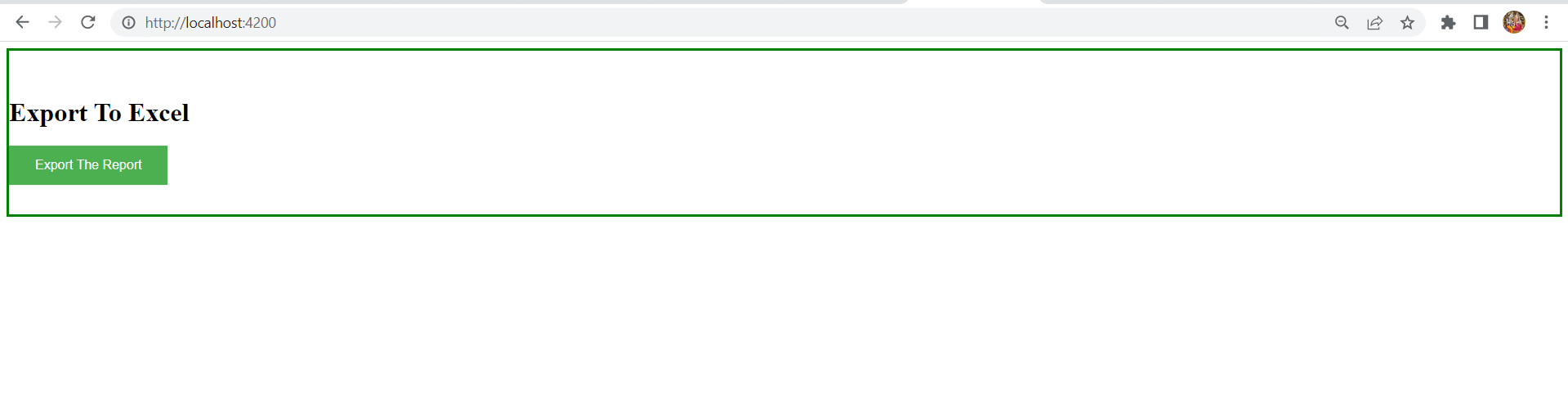
In the App template just add a button to call this method
<style>
  .container {
    height: 200px;
    position: relative;
    border: 3px solid green;
  }

  .vertical-center {
    margin: 0;
    position: absolute;
    top: 50%;
    -ms-transform: translateY(-50%);
    transform: translateY(-50%);
  }

  .button {
    background-color: #4CAF50;
    /* Green */
    border: none;
    color: white;
    padding: 15px 32px;
    text-align: center;
    text-decoration: none;
    display: inline-block;
    font-size: 16px;
  }
</style>

<div class="container" role="main">
  <div class="vertical-center">
    <H1>Export To Excel</H1>
    <button (click)="exportToExcel()" class="button">Export The Report</button>
  </div>
</div>

<router-outlet></router-outlet>
Now you can run your Angular project by hitting
ng serve --open
OUTPUT :