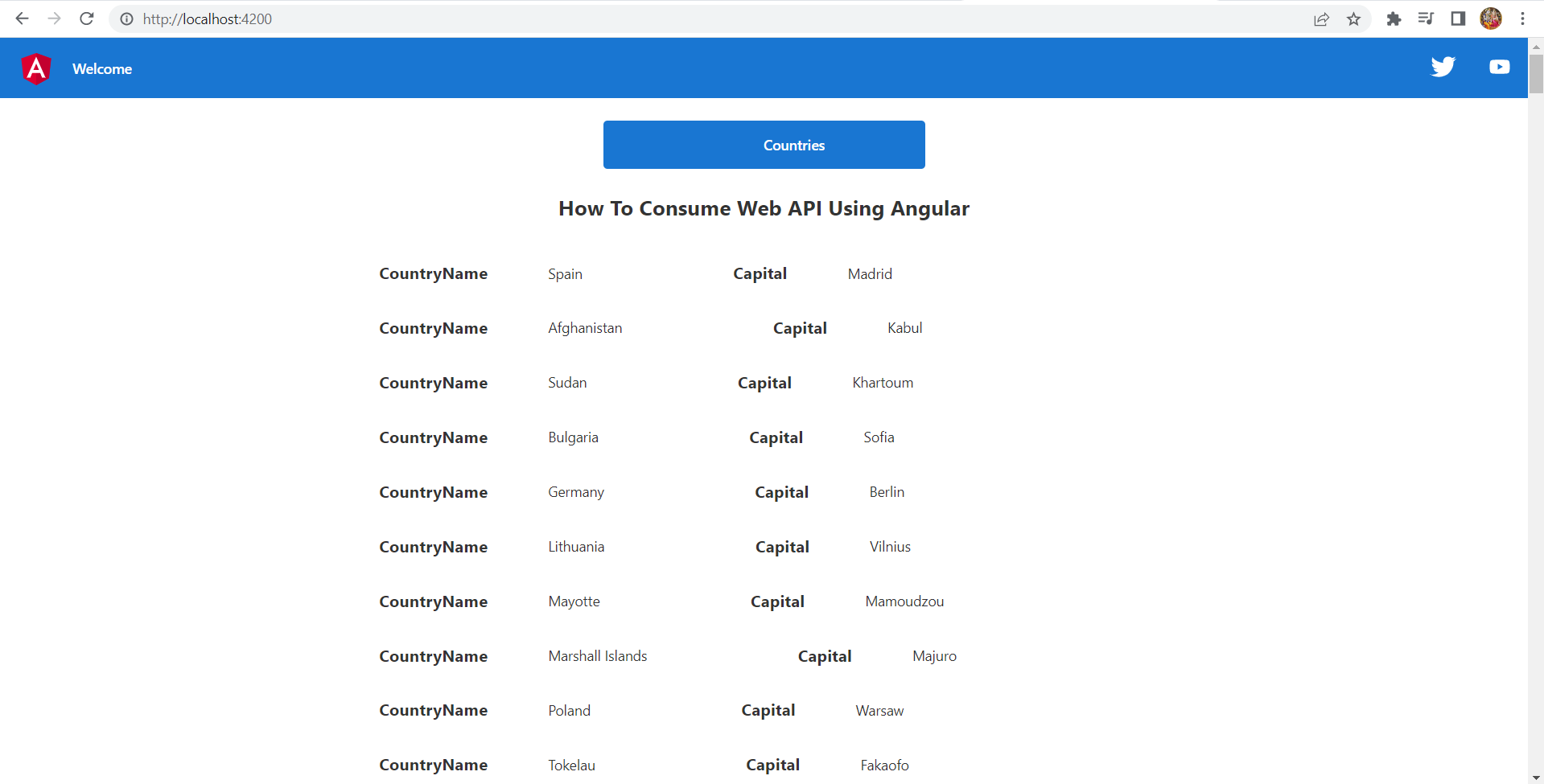
How To Consume Web API Using Angular
Create an Angular Project using CLI
$ ng new web-api-in-angular
This will prompt you some options like adding routing and stylesheet selection, you can select as per your need. Next, you can run your application by using the below command.
$ cd web-api-in-angular
$ ng serve --open
now it will automatically redirect to http://localhost:4200. You’ll now see your application running.
$ ng generate service api
This will generate the service file in this location – src/app/api.service.ts. Before editing the service file, we have to import HttpClientModule inside src/app/app.module.ts
import { NgModule } from '@angular/core';
import { BrowserModule } from '@angular/platform-browser';
import { HttpClientModule } from '@angular/common/http';
import { AppRoutingModule } from './app-routing.module';
import { AppComponent } from './app.component';
import { CountryListComponent } from './country-list/country-list.component';

@NgModule({
  declarations: [
    AppComponent,
    CountryListComponent
  ],
  imports: [
    BrowserModule,
    AppRoutingModule,
    HttpClientModule
  ],
  providers: [],
  bootstrap: [AppComponent]
})
export class AppModule { }
import { Injectable } from '@angular/core';
import { HttpClient } from '@angular/common/http';
@Injectable({
  providedIn: 'root'
})
export class ApiService {
  constructor(private httpClient: HttpClient) { }

  public getCountry(){
    return this.httpClient.get('https://restcountries.com/v3.1/all');
  }
}
We are done with the basic setup of HttpClient and the service file. To Generate a component where we will list the API response data. Use the below CLI command to generate component
$ ng generate component countryList
This will generate a component for you in – src/app/country-list/. Once the component is generated we need to add the routing for that component.
Adding route
Edit and add the below code in src/app/app-routing.module.ts
import { NgModule } from '@angular/core';
import { Routes, RouterModule } from '@angular/router';
import { CountryListComponent } from './country-list/country-list.component';
const routes: Routes = [
  {path:'country-list', component: CountryListComponent}
];
@NgModule({
  imports: [RouterModule.forRoot(routes)],
  exports: [RouterModule]
})
export class AppRoutingModule { }
Now go to http://localhost:4200/country-list you can see the countryList component will be loaded. Using the service file to call the API and getting the data in the component.
Open the component and add the below code.
import { Component, OnInit } from '@angular/core';
import { ApiService } from '../api.service';

@Component({
  selector: 'app-country-list',
  templateUrl: './country-list.component.html',
  styleUrls: ['./country-list.component.scss']
})
export class CountryListComponent implements OnInit {
  countryList: any;

  constructor(private apiService: ApiService) { }

  ngOnInit() {
    this.apiService.getCountry().subscribe((data) => {
      console.log(data);
      this.countryList = data;
    });
  }
}
Save and run the application and check the log, you will be able to see the list of all countries. Let’s populate the received data into a template for a good look.
Edit your template file and add this – src/app/country-list/country-list.component.html
<div *ngFor="let country of countryList">
    <div >
        <h3 style="display: inline-block;padding: 0px 60px 0px 15px;">CountryName</h3><span>{{country.name.common}}</span>
        <h3 style="display: inline-block;padding: 0px 60px 0px 150px;">Capital</h3><span>{{country.capital}}</span>
    </div>
</div>
run the project by following the command
ng serve --open