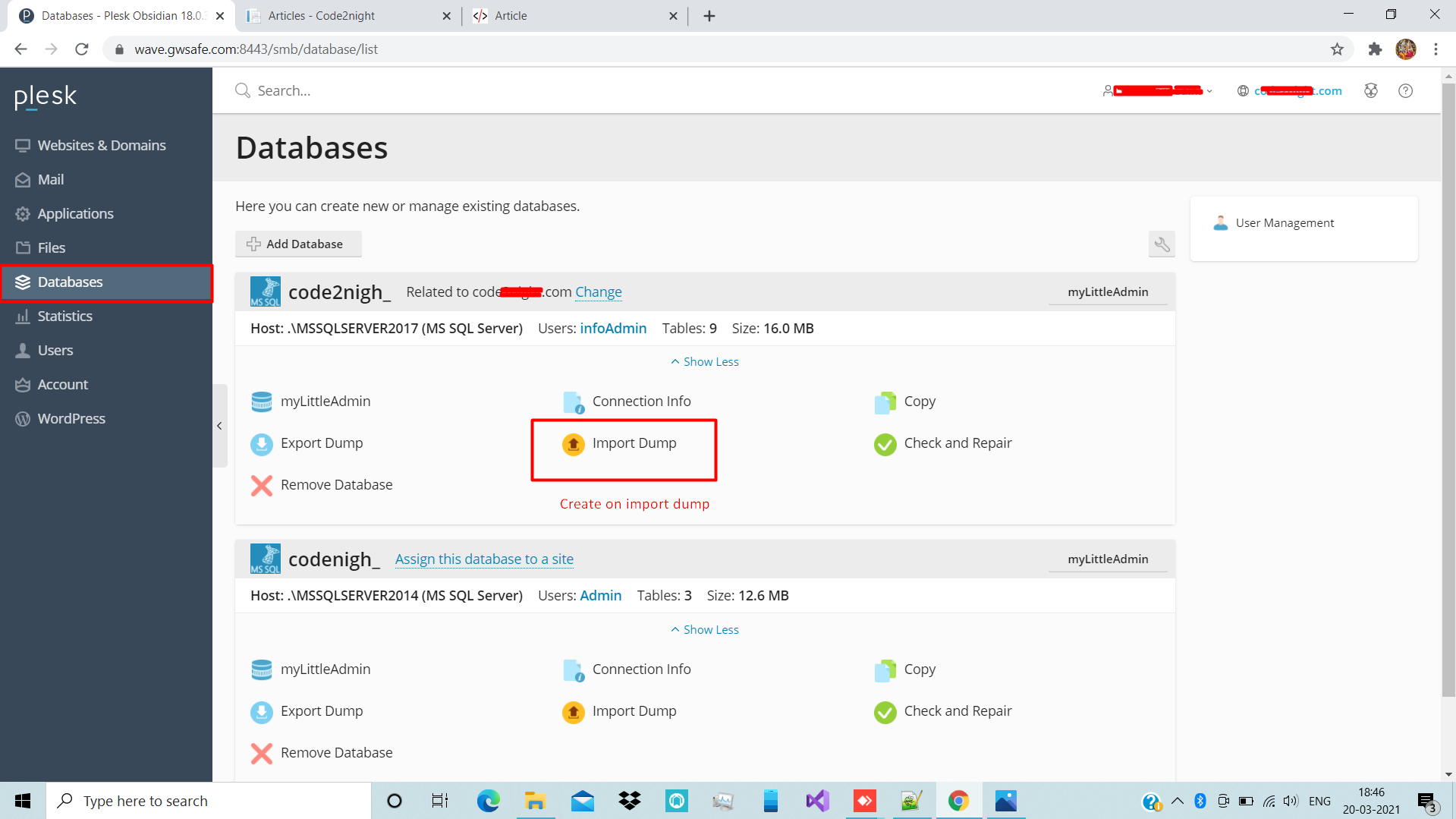
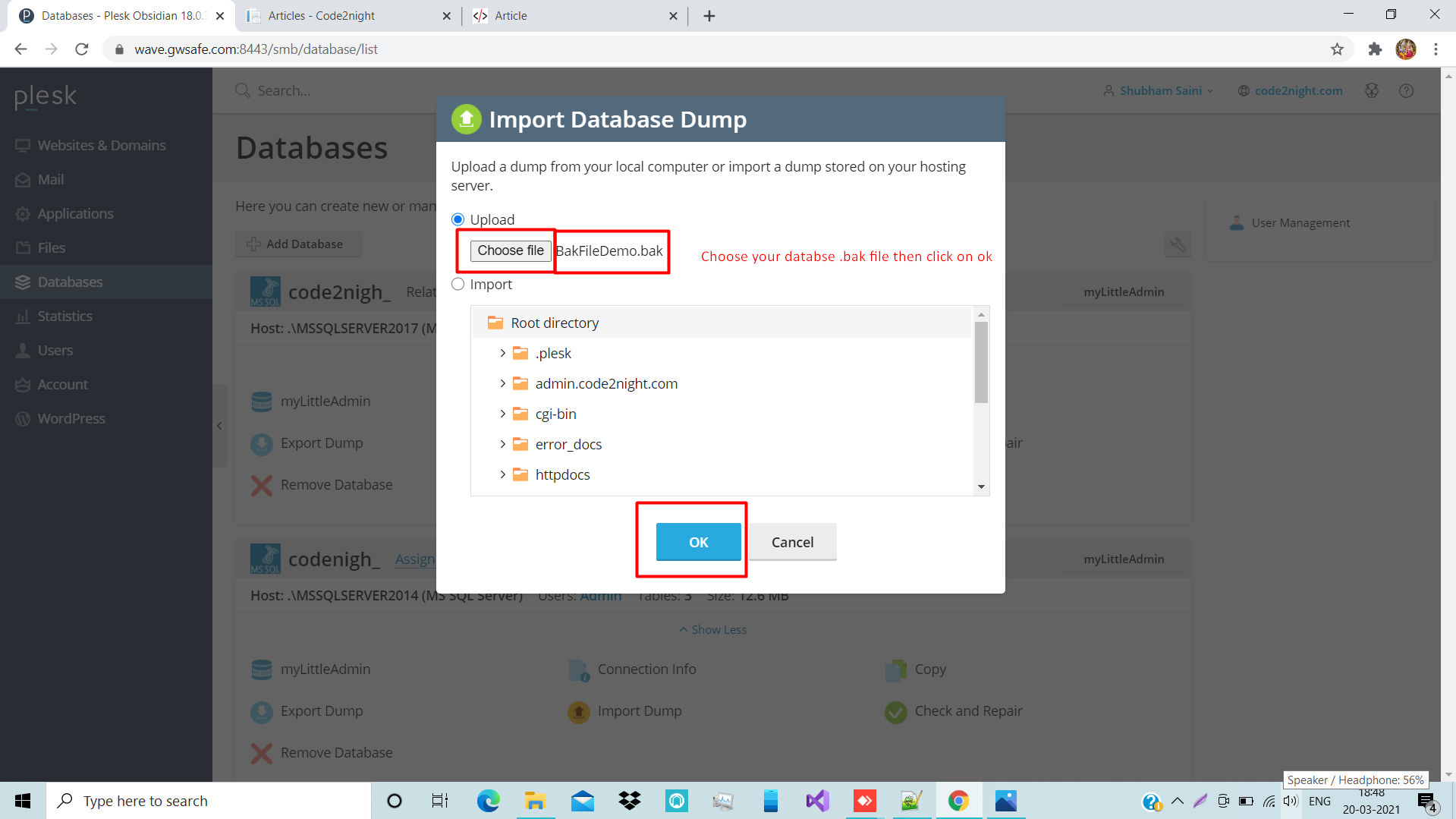
Upload .bak file to plex server
Overview of Plex and .bak Files
Plex is a powerful media server application that allows users to organize and stream their media collections. A .bak file is a backup file that can contain a variety of data, including database backups or configurations. Utilizing .bak files is essential for maintaining your Plex server, especially when migrating to a new server or recovering from data loss.
In a real-world scenario, you might find yourself needing to restore your Plex database after an unexpected failure or when moving to a new machine. By uploading a .bak file, you can quickly recover your settings, media library information, and user configurations, ensuring minimal downtime.
Prerequisites
Before you begin uploading a .bak file to your Plex server, ensure you have the following prerequisites in place:
- Docker Installed: Make sure you have Docker installed on your machine. You can download it from the official Docker website.
- Plex Media Server Running in Docker: You should have the Plex Media Server already running as a Docker container. If you haven't set it up yet, refer to the official Plex documentation for installation instructions.
- Basic Docker Commands Knowledge: Familiarity with Docker commands will help you navigate the process more smoothly.
- .bak File Ready: Ensure you have the .bak file that you wish to upload to your Plex server.
Step 1: Prepare Your .bak File
Before uploading your .bak file, it's essential to confirm that the file is properly formatted and accessible. Place the .bak file in a directory that can be easily accessed by your Docker container. For example, you might create a directory named /plex_backups in your home directory.
mkdir ~/plex_backups
cp /path/to/your/file.bak ~/plex_backups/
This command creates a new directory for your backups and copies your .bak file into it. Make sure to replace /path/to/your/file.bak with the actual path of your .bak file.
Step 2: Upload the .bak File to Plex Server
To upload the .bak file to your Plex server, you will need to mount the backup directory to the Docker container running Plex. This can be done by using the -v option when starting your Plex container.
docker run -d \
  --name plex \
  -e PLEX_CLAIM="your_claim_token" \
  -e ADVERTISE_IP="http://your_ip_address:32400/" \
  -v ~/plex_backups:/backups \
  -v ~/plex_data:/data \
  -p 32400:32400 \
  plexinc/pms-docker
This command runs the Plex container and mounts the ~/plex_backups directory to the /backups path inside the container. Make sure to replace your_claim_token and your_ip_address with your actual values.
Step 3: Restore from the .bak File
Once the .bak file is uploaded to the Plex server, you will need to access the container and execute the necessary commands to restore the database. First, you can enter the Docker container using the following command:
docker exec -it plex /bin/bashAfter entering the container, navigate to the backups directory and execute the restore command. The command may vary based on how the Plex server is set up to handle backups, but typically it would look something like this:
cd /backups
restore_database_tool restore /backups/file.bak
Replace restore_database_tool with the actual tool or command used for restoration in your setup. This action will initiate the restoration process from the .bak file.
Edge Cases & Gotchas
When working with .bak files and Docker, several edge cases and gotchas may arise:
- File Permissions: Ensure that the .bak file has the correct permissions set so that the Docker container can access it. You may need to adjust permissions using chmod or chown.
- Version Compatibility: Always check if the version of the Plex server matches the version that created the .bak file. Incompatibilities may lead to errors during the restoration process.
- Network Issues: If you're accessing the Plex server remotely, ensure that your network settings allow for proper communication between your client and the server.
Performance & Best Practices
To ensure optimal performance when using .bak files with your Plex server, consider the following best practices:
- Regular Backups: Schedule regular backups of your Plex database to minimize data loss. Use cron jobs or similar scheduling tools to automate this process.
- Monitor Resource Usage: Keep an eye on your server's CPU and memory usage during the restore process. Database restoration can be resource-intensive, and it's best to perform it during off-peak hours.
- Test Restores: Periodically test the restore process with sample .bak files to ensure that your backup strategy works effectively. This practice can save you time and stress during a real recovery scenario.
Conclusion
Uploading and restoring a .bak file on your Plex server through Docker is a straightforward process that can save you time and effort in managing your media library. By following the steps outlined in this guide, you can ensure your Plex server is always up-to-date and ready for streaming.
- Understand the importance of .bak files for data recovery.
- Ensure prerequisites are met before attempting the upload.
- Follow best practices for optimal performance and reliability.