
Integrating Google Map Places Api in Asp.Net MVC
Overview of Google Map Places API
The Google Map Places API is a service that allows developers to access information about places, including establishments, geographic locations, and prominent points of interest. This API can be particularly useful for applications that require location-based services, such as delivery apps, travel planners, and local business directories. By integrating the Places API, you can enhance your application's usability and provide a better experience for users.
For instance, imagine a food delivery app that allows users to search for restaurants. By utilizing the Places API, you can provide real-time autocomplete suggestions as the user types, making it easier for them to find the restaurant they are looking for. This not only improves user satisfaction but can also increase the speed of the ordering process.
Prerequisites
Before you begin integrating the Google Map Places API into your ASP.NET MVC application, ensure you have the following prerequisites:
- A Google account to access the Google Cloud Console.
- An active billing account associated with your Google Cloud project.
- Basic knowledge of ASP.NET MVC and JavaScript.
Step 1: Create a Google Cloud Project and Obtain an API Key
To use the Google Map Places API, you first need to create a project in the Google Cloud Console. Follow these steps:
- Go to the Google Cloud Console.
- Create a new project by clicking on the project dropdown at the top and selecting 'New Project'.
- Once your project is created, navigate to the 'APIs & Services' section.
- Click on 'Enable APIs and Services' and search for 'Places API'. Enable it for your project.
- Next, navigate to 'Credentials' and click on 'Create Credentials'. Choose 'API Key'.
- Copy the generated API key; you will use it in your application.
Step 2: Integrate the API into Your ASP.NET MVC Application
To integrate the Google Map Places API into your ASP.NET MVC application, follow these steps:
First, create an input box in your view where users can type their location:
@Html.TextBox("PickUpLocation", null, new { @class = "form-control", @id = "PickUpLocation" })Next, include the Google Maps JavaScript library in your view. Make sure to replace <Your Key Here> with your actual API key:
<script src="https://maps.googleapis.com/maps/api/js?v=3.11&sensor=false&libraries=places&key=<Your Key Here>" type="text/javascript"></script>Now, add the JavaScript code to implement the autocomplete feature:
google.maps.event.addDomListener(window, 'load', function () {
    var places = new google.maps.places.Autocomplete(document.getElementById('PickUpLocation'));
    google.maps.event.addListener(places, 'place_changed', function () {
        var place = places.getPlace();
        var address = place.formatted_address;
        var latitude = place.geometry.location.lat();
        var longitude = place.geometry.location.lng();
        // You can use the address, latitude, and longitude for further processing
    });
});
Step 3: Testing the Integration
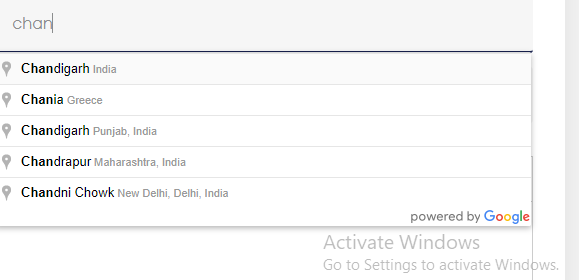
After implementing the above steps, reload your ASP.NET MVC application. When you start typing in the input box, you should see autocomplete suggestions based on the Google Places database. This feature enhances the user experience by providing relevant suggestions, reducing the risk of errors in address input.
Edge Cases & Gotchas
When integrating the Google Map Places API, be aware of the following edge cases and potential issues:
- Quota Limits: Google Places API has usage limits, and exceeding these can result in additional charges or service interruptions. Monitor your API usage in the Google Cloud Console.
- Billing Account: Ensure that your billing account is active and linked to your project. If the billing account is suspended, the API will not function.
- Cross-Origin Issues: Be cautious of CORS (Cross-Origin Resource Sharing) issues when making requests from different domains. Ensure your application is configured correctly to handle these requests.
Performance & Best Practices
To ensure optimal performance when using the Google Map Places API, consider the following best practices:
- Debounce Input: Implement a debounce mechanism to limit the number of API calls made as the user types. This can help reduce unnecessary requests and improve performance.
- Handle Errors Gracefully: Always implement error handling in your JavaScript code. This ensures that users receive feedback if something goes wrong, such as network issues or API errors.
- Restrict API Key Usage: For security reasons, restrict your API key to specific referrer URLs. This prevents unauthorized use of your API key.
- Optimize Autocomplete Results: You can filter the types of places returned by the API to match your application's needs, such as limiting results to restaurants or landmarks.
Conclusion
Integrating the Google Map Places API into your ASP.NET MVC application can significantly enhance the user experience by providing dynamic location suggestions. By following the steps outlined in this article, you can implement this functionality effectively. Here are the key takeaways:
- Obtain an API key from the Google Cloud Console and link it to a billing account.
- Implement an input box and include the Google Maps JavaScript library in your view.
- Use JavaScript to enable autocomplete functionality for location input.
- Be aware of edge cases, such as quota limits and billing issues.
- Follow best practices to optimize performance and security.
